

The Assistant API provides a set of development tools to help you easily manage conversation messages and call tools. This topic uses the example of building a painting assistant from scratch to help you quickly learn the basic encoding methods of the Assistant API.
Typical process
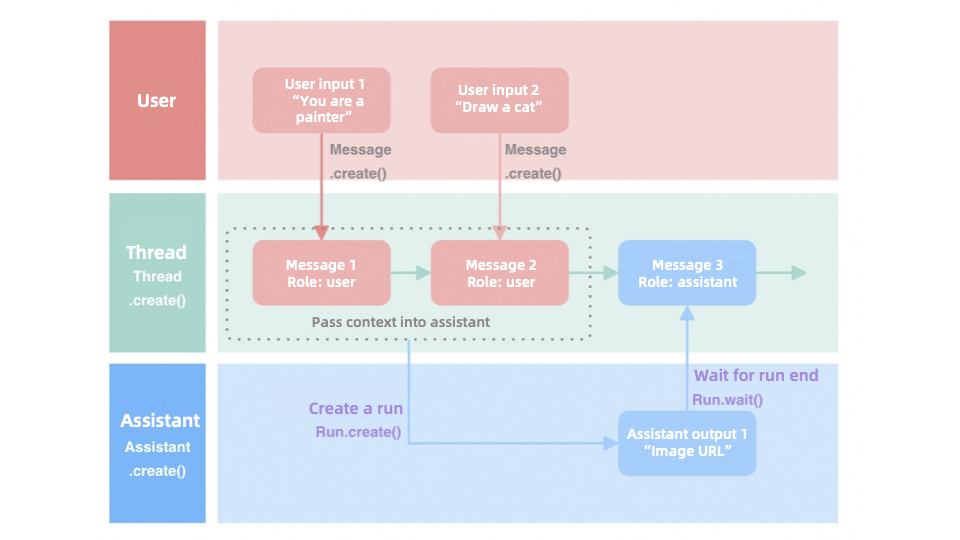
The following is a typical process for building an agent application (Assistant):
- Create an Assistant: When you create an assistant, select a model, provide instructions, and add tools, such as a code interpreter and function calling.
- Create a Thread: When a user starts a conversation, create a session thread to track the conversation history.
- Send a Message to the Thread: Add the user's message to the conversation.
- Start a Run: Run the assistant on the session thread. The assistant parses the message, calls the appropriate tools or services, generates a response, and returns it to you.
Example scenario
Text generation models cannot generate images on their own. A specific text-to-image model is typically required to convert text into images. An agent application created with the Assistant API can automatically optimize the descriptive words provided by the user, call a text-to-image tool to generate high-quality images. For example, to generate a lifelike image of a pet cat, you only need to provide a basic description. The drawing assistant automatically refines the prompt and passes it directly to the text-to-image tool to efficiently complete the image creation task.
Procedure
The following steps guide you through the process in Python for the non-streaming output mode. For the complete Python and Java SDK code for both streaming and non-streaming output, see Complete code at the end of this topic.
Step 1: Prepare the development environment
| |
Step 2: Create an AssistantAfter you import the Dashscope SDK, use the create method of the Assistant class to create an Assistant agent. This process involves setting the following key parameters:
| |
Step 3: Create a ThreadA Thread is a key concept in the Assistant API that represents a continuous conversation context.A Thread lets you create a session management thread when a user starts a new conversation. The Assistant can use the Thread to understand the entire conversation context and provide more coherent and relevant responses.We recommend that you:
| |
Step 4: Add a Message to a ThreadYour input is passed through a Message object. The Assistant API supports sending one or more messages to a single Thread. When you create a Message, consider the following parameters:
After the Messages.create() method is executed, it automatically adds the message to the thread and triggers spooling. This is equivalent to completing both the message creation and sending operations at the same time, which is the default behavior of the API. | |
Step 5: Create and execute a RunAfter a user assigns a message to a specific Thread, you can start a Run to activate the pre-set Assistant. The assistant uses all messages in the thread as context, utilizes the specified model and available plugins to intelligently respond to the user's questions, and inserts the generated answers into the thread's message sequence.In this scenario, perform the following steps:
Many users may be using the model at the same time, which can extend the processing time. We recommend that you wait until the status shows "complete" before you perform the next operation to ensure a smooth process. |
Complete code
- Non-streaming output
- Streaming output