

To build a knowledge base, import your source data.
Procedures
- Import local files
- Import local tables
- Import OSS files
- Go to the File tab.
-
Under Category in the left-side navigation pane, select an existing category or click the
 icon to create a new one.
Model Studio uses categories to manage imported files.
-
Click Import Data to open the Import Data page. Select Upload Local File as the import method.
The platform does not support importing JSON, CSV, or YAML files directly. Convert these files to the XLSX or XLS format before importing.
-
For Parsing Method, select Default Settings or Custom Settings (Custom Settings lets you configure parsing rules for different formats to improve parsing results).
Parsing method descriptions
Configure the parsing strategy based on your requirements. If you are unsure, we recommend keeping the default settings.- Digital Parsing: This method does not support parsing illustrations and charts in files.
- Intelligent document parsing: The parser identifies and extracts text from illustrations in a file, and then generates text summaries. These summaries, along with other non-image content, are segmented, converted into vectors, and used for knowledge base retrieval.
- LLM parsing: Agent applications using models from the model list let users ask questions about the content of illustrations and charts in files. If you need to recognize and understand illustrations and charts in your files, select LLM Parsing.
- Qwen-VL parsing: This method supports only image formats. You can select a Qwen-VL model and pass in a prompt to specify the layout, elements, and content that the model should recognize. Other features are consistent with LLM parsing.
How to ensure illustrations from files display correctly in Model Studio application responses

-
(Optional) Configure Tags for the file.
When you call an application using an API, you can specify tags in the
tagsrequest parameter. The application then filters files based on these tags during knowledge base retrieval to improve search efficiency. For an agent application, you can set tags in the console when you debug the knowledge base. -
Click Confirm. The system begins parsing and importing the file. You can track the task progress on the page.
The file is converted into a format that Model Studio can process. This process may take several hours during peak usage.
-
After the import is complete, click Details to the right of the file to view the imported file.
After a file is imported into Model Studio, it is stored as an independent copy that is unlinked from the original data in platform-provided storage. Currently, this storage is free and has no capacity limit.
You can view only files imported within the last 90 days. After this period, the imported files are no longer viewable, but they are not deleted.
Imported files are available only to users in the current workspace. Model Studio does not use them for any commercial purposes or make them public.
 icon to select and upload a file in XLSX or XLS format.
Next steps
Create a knowledge base
More
Import files from OSS
To import files from OSS for the first time, you must authorize Model Studio to access your OSS resources. The authorization process differs for an Alibaba Cloud account and a RAM user.
- Alibaba Cloud account
- RAM user
-
Click Authorize Now.

-
In the dialog box that appears, click Confirm Authorization. This action automatically creates a service-linked role for OSS, which grants Model Studio access to your OSS resources.
Authorization usually completes in seconds but can be delayed during peak hours.
What do I do if I receive the "The request failed. Try again or contact the administrator. Error code: 10041495" error?

-
Add the
bailian-datahub-accesstag to the target OSS bucket.Model Studio can access only buckets that have this tag.
- Go to the OSS console. In the left-side navigation pane, click bucket list, and then find the target bucket.
-
Hover over the
 icon for the bucket and click Modify (if no tags are set) or Go to Edit.
- On the bucket tags page, click Create Tag (if no tags are set) or Settings.
-
Click Tag. Add a tag with the key
bailian-datahub-accessand the valueread, and then click Save.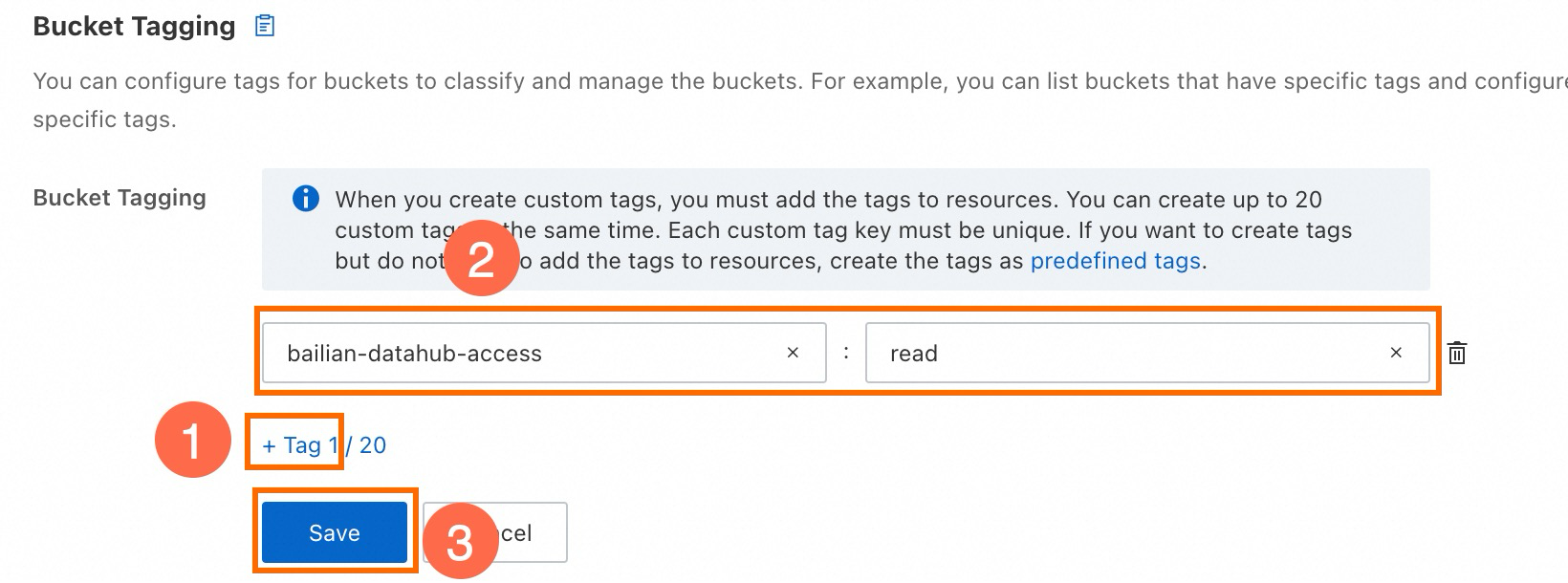
-
Return to the Import Data page, reselect the target bucket, and retry the import.
Important: Model Studio does not support accessing files in the root directory of a bucket. You must select an existing subdirectory or create a new one for Model Studio to access.
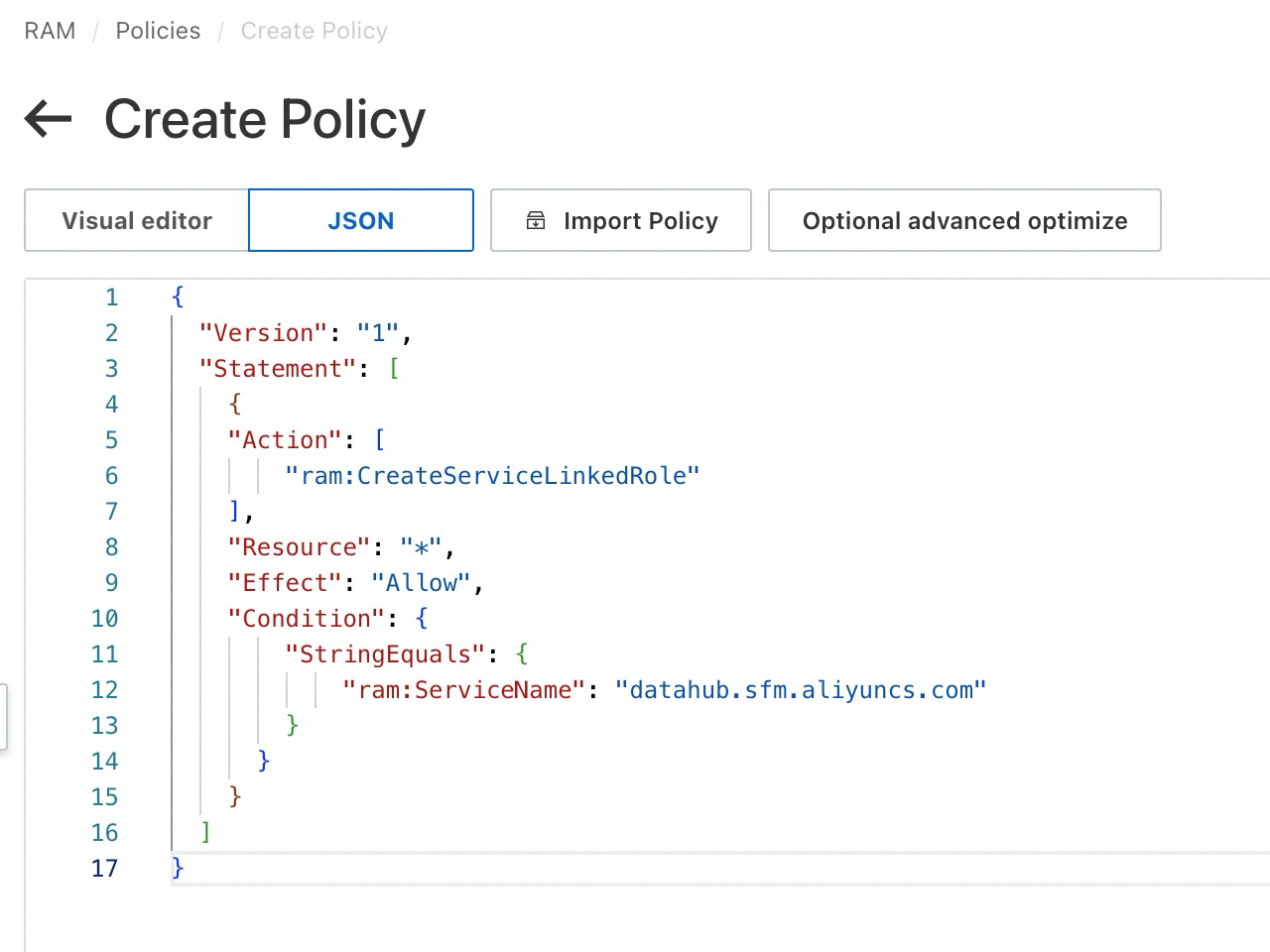
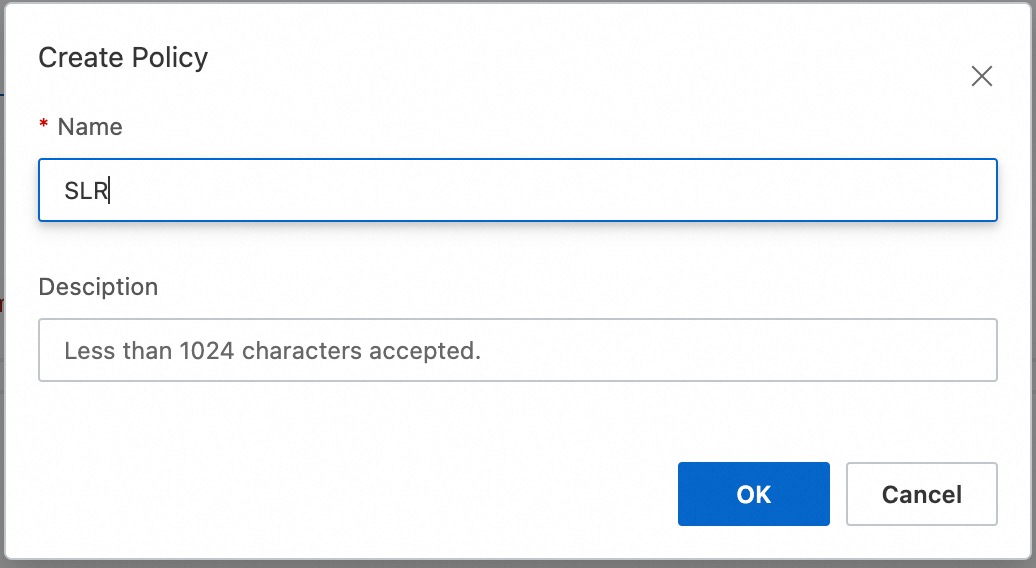

Quotas and limits
For details on supported data formats and capacity, see knowledge base quotas and limits.
FAQ
Permissions and security
How do I resolve the "You do not have the required permissions for this module" error during data import?
How do I resolve the "You do not have the required permissions for this module" error during data import?
The Alibaba Cloud account must grant the RAM user the
Administrator permission, or at least the ApplicationData-FullAccess and KnowledgeBase-FullAccess permissions. For more information, see Page permissions.Import OSS files
How do I resolve error code "10041495" when importing OSS files?
How do I resolve error code "10041495" when importing OSS files?
This error typically occurs because the Alibaba Cloud account has not activated OSS. To resolve this issue:
- Log on to the OSS console with your Alibaba Cloud account and activate OSS as prompted.
- Return to the Model Studio Import Data page and retry the authorization.