

Qwen-LiveTranslate-Realtime AOQ access
Scope of Application
This document is intended for the Qwen-LiveTranslate-Realtime series; see Real-Time Audio and Video Translation for a list of models. The examples on this page use qwen3.8-livetranslate-flash-realtime. Configuration and event fields differ for qwen3.5-livetranslate-flash-realtime; see Client Events for details.
- Use the API Key and Workspace ID corresponding to your selected region and workspace.
-
Beijing domain:
{WorkspaceId}.cn-beijing.maas.aliyuncs.com; Singapore domain:{WorkspaceId}.ap-southeast-1.maas.aliyuncs.com. - Store the API Key only on the server. Do not embed it in a browser or mobile application.
- When capturing audio with a microphone, request microphone permissions according to platform requirements.
- Download the SDK for your platform from SDK downloads.
Authentication and connection credentials
Send the following request from your AppServer. First configure the API Key as an environment variable. Replace {WorkspaceId} in the domain with your workspace ID. For another region, use the corresponding domain listed above. clientIp is optional. If omitted, the gateway uses the IP address from which it receives the request.
-d '{}' in the request body with -d '{"clientIp":"<CLIENT_PUBLIC_IP>"}'.
Request fields
Configuration | Value | Description |
|---|---|---|
endpoint | Select the endpoint domain for your use case | Specify the endpoint domain. For details, see Select a region, deployment scope, and endpoint. If you use Token Plan, set |
Content-Type |
| Message media type |
Authorization |
| Your API Key |
x-dashscope-rtc-transport |
| Select the AOQ protocol |
clientIp | The client public IP address | Optional. If omitted, the service uses the IP address from which the gateway receives the request. If specified, it uses clientIp. The service selects the best Relay endpoint based on the client IP address. |
Response example
Response fields
Field | Description |
|---|---|
sid | Unique session identifier. |
aoqTokenForClient | Client connection token. Pass this value to the SDK token field. |
clientRelayEndpoints | Array of Relay endpoints. Each element in the response example contains the following fields:
Properties endpointRelay endpoint address.portRelay endpoint port.route_indexThe iOS example below uses the array index when this field is absent. |
clientRelayCertFingerprint | Relay TLS certificate fingerprint. |
sidExpiresInSecs | Session expiration time in seconds. |
extraInfo | Additional information.
Properties workspaceIdHashWorkspace ID hash. |
AOQ Client SDK connection example
clientIp is an optional field in the request body. If not specified, the IP address that requests the Model Studio gateway is used as the client IP. If specified, the clientIp value takes precedence. Have your business AppServer obtain the client's real IP address and pass it in to get the best Relay access point.Workflow
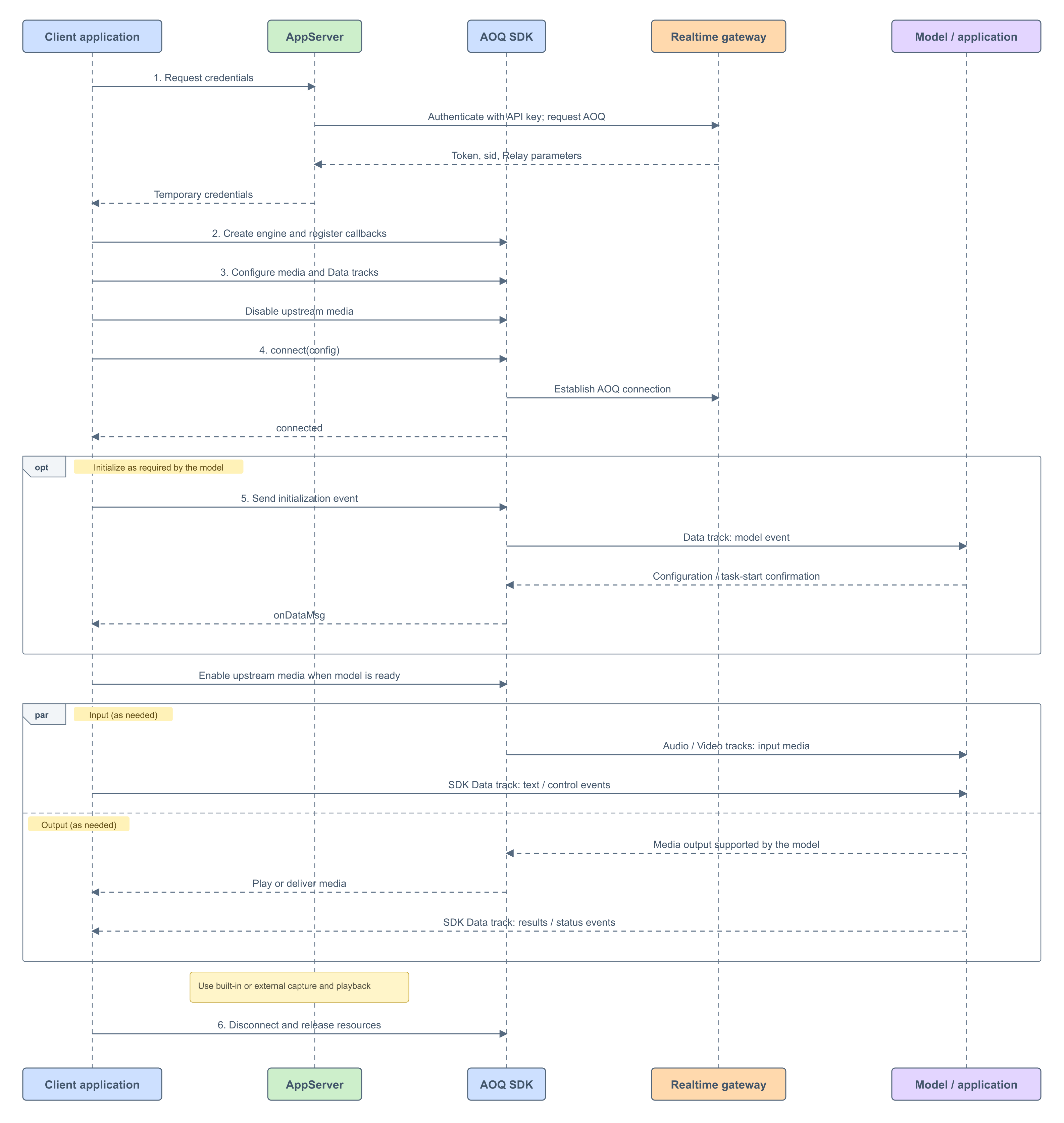
- Obtain connection credentials through AppServer.
- Create the SDK engine and register callbacks.
- Configure media and Data tracks, and disable upstream media transmission.
- Establish the AOQ connection and wait for it to connect.
- Configure the model according to its protocol. Enable the required upstream media after confirmation.
- Disconnect and release resources when interaction is complete.
- Media data is handled by AOQ SDK, which is responsible for capturing, processing, sending, receiving, and playing media; Data must be sent and received by the caller according to the target model’s event definitions.
-
A successful connection indicates that the transmission channel with the model has been established. The client should enable the required upstream media only after the model has finished initializing. For the example model
qwen3.8-livetranslate-flash-realtimeon this page, after sendingsession.update, wait forsession.updatedbefore enabling media transmission.
1. Obtain connection credentials
The client requests credentials from your AppServer. The AppServer calls this model's Realtime connection endpoint and includes the API Key and x-dashscope-rtc-transport: moq in the gateway request. For the full endpoint, request, and field descriptions, see Token authentication.
Map the response to AoqConnectConfig:
| Gateway response | SDK configuration |
|---|---|
aoqTokenForClient | token |
sid | sid |
clientRelayCertFingerprint | certFingerprint |
clientRelayEndpoints | relayEndpoints, convert each access point according to the structure |
extraInfo contains workspaceIdHash | workspaceIdHash |
2. Initialize the SDK and register callbacks
Create the engine and register callbacks for connection status, Data messages, and errors. The following example uses Swift on iOS:
AoqEngineDelegate; maintain connection status in onConnectionStatusChange; parse target model events in onDataMsg; handle SDK errors in onError. Error events returned by the model also need to be handled separately within the Data message processing logic. For details on the SDK interface and error descriptions, see Platforms SDK and Feature Reference.
3. Configure the SDK
Select media directions
Directions are relative to the client. Configure only the input and output modalities that your application needs. Do not add tracks for unused directions.
| Direction | Configuration | Typical use |
|---|---|---|
| Push Audio: | Publish an Audio track, set the audio encoder, configure built-in or external capture | Voice Translation |
| Pull Audio: | Subscribe to the Audio track, set the audio decoder, configure a player or external playback | Translate and Play Audio |
| Push Video: | Configure the Video track, camera, or external video input according to the selected version and supported scenarios | Send video to models that support visual input |
| Pull Video: | This model does not support video output | Do not configure video subscription |
Media directions for this model
The table below lists the media directions for this model. See Applicability for the model’s scope; other integration methods are described in Qwen-LiveTranslate-Realtime.
| Model or application | Send audio | Receive audio | Send video | Receive video |
|---|---|---|---|---|
| Qwen-LiveTranslate-Realtime | Enable when voice input is active | Enable when voice translation is needed | Configure according to the selected version and scenario | Does not support enabling |
Configure media parameters and tracks
Configure upstream and downstream audio separately: use setAudioEncoderConfig for upstream audio and setAudioDecoderConfig for downstream audio. These parameters control network transmission; the gateway converts audio to the format required by the model. Configure transport encoding and the audio format in model events according to the SDK and target model requirements, respectively.
Start startAudioCapture or startAudioPlayer according to the direction. Custom input and output are described in the advanced capabilities section below.
publishTracks are sent by the client, and subscribeTracks are received by the client:
| Scenario | publishTracks | subscribeTracks |
|---|---|---|
| Voice Translation | Audio, Data | Audio, Data |
4. Establish Connection
Fill the credentials and track configuration into AoqConnectConfig, then call:
onConnectionStatusChange to return .connected, then proceed to the model initialization process. A return from connect does not mean that the connection has succeeded.
5. Exchange model events and media
Send and parse model events
The client sends events via the Data track. The following is a Swift code snippet for iOS; for other interfaces, see iOS SDK Reference:
onDataMsg. This model identifies event types through the type field. Complete fields, parameters, and termination conditions should follow the target model’s documentation.
Enable media after the model is ready
After the current model, session, or task satisfies its readiness conditions, enable only the configured upstream directions. For speech input, call:
input_audio_buffer.append to repeatedly send audio. Downstream audio is processed by the configured player or external playback logic.
6. End interaction and release resources
The following shutdown sequence applies to qwen3.8-livetranslate-flash-realtime’s AOQ voice translation:
- Stop capturing and disable upstream audio; cease sending input, and send one
session.finishmessage via the Data track. - Maintain the AOQ connection, Data subscription, and audio playback, continue receiving the original text, translation, and translated audio of the final sentence, and wait for
session.finished. - If full playback of the translated audio is required, disconnect the connection and release resources only after finishing local audio playback cleanup.
session.finish and session.finished, see Client Events and Server Events, respectively. For the complete code, refer to Real-Time Speech Translation Practice.
After completing the above cleanup steps, the client-side business layer calls the disconnect and resource-release interfaces of AOQ and SDK:
Sending and Receiving Events via the Data Channel
The client sends and receives model events via the Data track of AOQ SDK. During connection, both publishing and subscribing to the Data track are required; when sending, serialize the model event into AoqDataMsg and call the platform’s Data send interface; upon receipt, parse the message in the onDataMsg callback. See Platform-Specific SDK for detailed interfaces.
The names, fields, parameters, and timing of sent events follow the target model’s Client Event Definitions; the parsing method, state changes, results, and error handling after receiving messages adhere to the model’s Server Event Definitions. Initialization events are sent as needed according to the model’s requirements, while subsequent text and control events are sent based on business needs.
| Model or application | Client events (send) | Server events (receive) |
|---|---|---|
| Qwen-LiveTranslate-Realtime | Client Events | Server Events |
-
Use the
typefield of events to identify model events, and handle associated identifiers according to this model’s event reference. - Operations such as initialization confirmation, input submission, response cancellation, and task completion—required by the model—are all handled within the Data channel according to the corresponding protocol; these constitute the model’s interaction semantics and are distinct from disconnecting the transport connection.
- Before ending, complete input submission and result reception as described in this model’s event documentation; if full playback is required, release the connection only after processing any locally queued audio.
- Media data is transmitted via media tracks. When referencing the model event documentation, the media encapsulation and available interaction modes still follow the access method described in this document and do not directly adopt WebSocket's media transmission approach.
Advanced features
| Capability | Use case | Documentation |
|---|---|---|
| control audio transmission | wait for model readiness, pause upstream audio | media stream transmission management |
| audio devices and processing | encoding/decoding, speakers, file mixing, audio frame callbacks | common audio functions |
| external audio input | use a client-side audio source | custom audio capture |
| external audio output | processed by the client side or played out | custom audio playback |
Session Configuration Example
qwen3.8-livetranslate-flash-realtime. Audio is transmitted via media tracks and does not use WebSocket's media transmission events.AOQ SDK downloads
The version update notes below describe the general capabilities of AOQ SDK; the scope of media support for this model is detailed in the Media Orientation for This Model above.
| Version | Platform | Download | Release Date | Release Notes |
|---|---|---|---|---|
| v1.4.0 | Android | AoqClientSdk-release.aarlibPluginOpus.zip | 2026-10-27 |
|
| iOS | AoqClientSdk.framework.zipAoqScreenShare.framework.zipPluginOpus.framework.zip | |||
| HarmonyOS | AoqClientSdk.harlibPluginOpus.zip | |||
| Windows | AoqClientSdk-windows-x64.zip | |||
| macOS | AoqClientSdk.framework.zipPluginOpus.framework.zip | |||
| Electron | aoq-electron-sdk-1.4.0-59463182.tgzAlternatively, install through npm:npm install aoq-electron-sdk@1.4.0-59463182 | |||
| Linux | x86_64: AoqClientSdk.ziparm64: AoqClientSdk.zip | |||
| v1.3.0 | Android | 2026-09-18 |
| |
| iOS | ||||
| HarmonyOS | ||||
| Windows | AoqClientSdk-windows-x64.zip | |||
| macOS | ||||
| Electron | Or install with npm: npm install aoq-electron-sdk@1.3.0-58586345 | |||
| Linux | x86_64: AoqClientSdk.zip arm64: AoqClientSdk.zip | |||
| v1.2.2 | iOS | AoqClientSdk.framework.zip | 2026-09-09 |
|
| v1.2.0 | Android | 2026-08-17 |
| |
| iOS | ||||
| HarmonyOS | ||||
| Windows | ||||
| macOS | ||||
| Electron | Package: aoq-electron-sdk-1.2.0-57407598.tgz Alternatively, install it by using npm: npm install aoq-electron-sdk@1.2.0-57407598 | |||
| Linux | x86_64: AoqClientSdk.zip arm64: AoqClientSdk.zip | |||
| v1.1.0 | Android | 2026-07-31 |
| |
| iOS | ||||
| HarmonyOS | ||||
| Linux | AoqClientSdk.zip | |||
| v1.0.1 | Android | 2026-07-09 |
| |
| iOS | ||||
| HarmonyOS |