

This page walks through the complete workflow in order of use: creating a throughput reservation in the console (form parameters and fee confirmation), integrating and calling the API, viewing monitoring data, and daily management (scaling, renewal, unsubscription, add-on capacity packs, and overflow policy changes).
Before you begin
Before using throughput reservations, make sure the following three items are ready:
- Model Studio: Activated in the Model Studio console.
- Workspace: A workspace has been created; calls against reserved capacity use the dedicated host and API Key of that workspace.
- API Key: Created within the target workspace; see Obtain and configure an API Key for instructions.
Create a throughput reservation
Open the creation page: Log on to the Model Studio console, choose Model Inference > Throughput Reservation in the left-side navigation pane, and click Create Throughput Reservation.
Fill in the form fields in the order they appear in the console:
| Form field | What you can enter | When it is available |
|---|---|---|
| Reservation Name | A custom name of up to 50 characters | Always visible |
| Select Model | Select the model to reserve capacity for from the drop-down list | Always visible; once selected, the billing cycle options appear dynamically based on the chosen model |
| Reasoning Mode | Standard mode / High-speed mode | Always visible; for the differences between the two, see Throughput reservation overview |
| Billing Cycle | By day / By 8-hour time slot / Pay-as-you-go by hour | By day: available for both modes. By 8-hour time slot: Standard mode only, and orders can be placed only from 22:00 on the current day to 00:00 the next day. Pay-as-you-go by hour: High-speed mode only; appears once High-speed is selected |
| Input capacity / Output capacity | In kTPM (1 kTPM = 1,000 tokens per minute); input starts at 200 with a step of 10, output starts at 20 with a step of 1 | Always visible; before purchasing, use the TPM capacity calculator for an estimate; for long-input and cache conversion rules, see Long input and prefix cache |
| Duration | 1~30, 60, 90, 120, or 365 Days | Visible only for upfront/by day; fixed at 8 hours for the 8-hour time slot option, no entry required; pay-as-you-go is billed by actual usage and has no duration |
| Auto-Renew on Expiration | Enable/Disable, enabled by default; when enabled, automatic deduction occurs between 8:20 and 20:00 one day before expiration, with up to 4 attempts | Visible only for upfront/by day; the 8-hour time slot option does not support auto-renewal |
| Renewal Duration | 1~30, 60, 90, 120, or 365 Days | Visible after Auto-Renew on Expiration is enabled (by day only) |
| Overflow policy | Auto overflow (default; usage beyond the reservation is automatically billed at pay-as-you-go rates without service interruption) / Use reserved capacity only (requests beyond the reservation directly return a 429 rate limit error and incur no extra charges) | Always visible |
model parameter with it in all subsequent calls.
Integration and calls
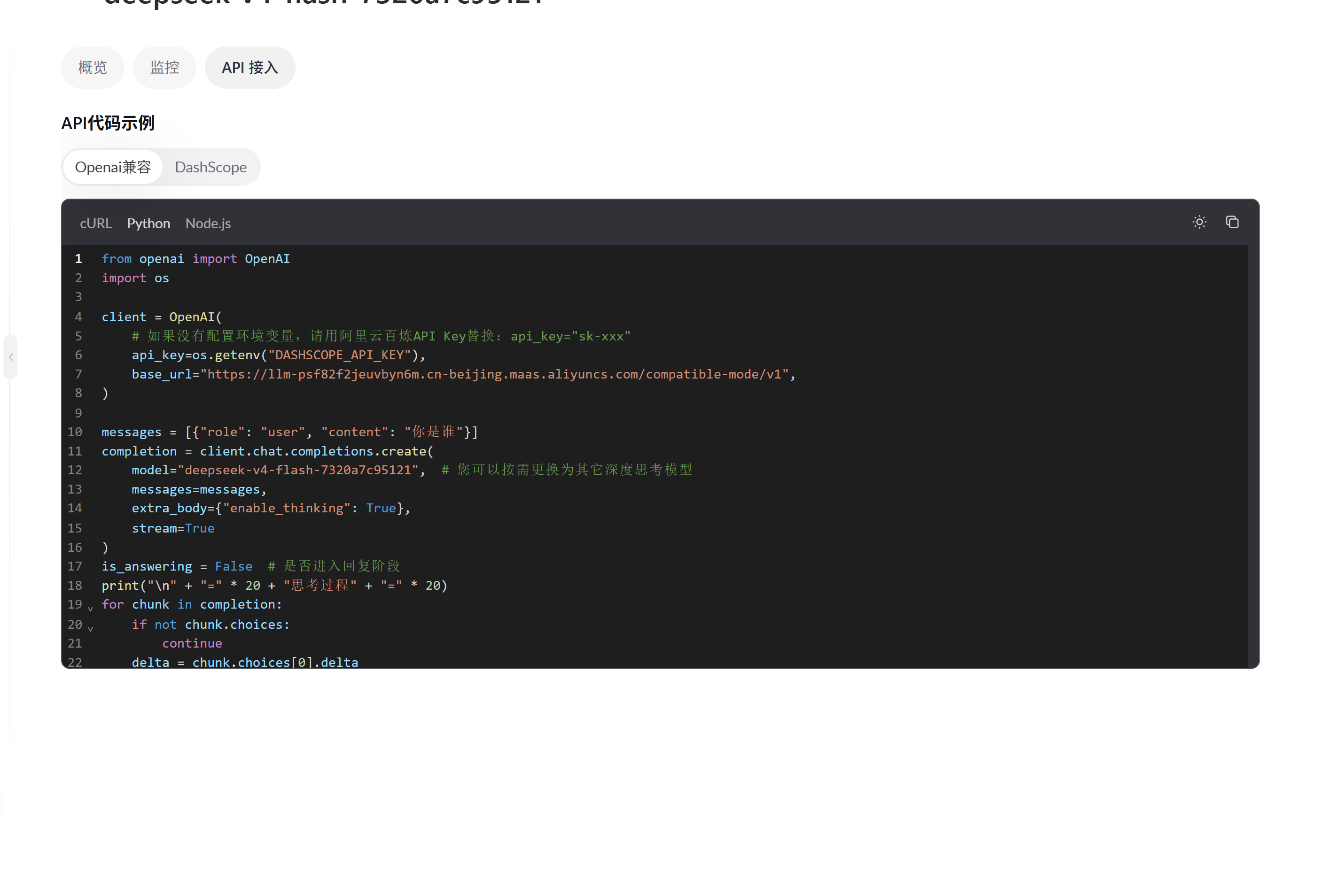
Prerequisite: the reservation instance status is Running. There is only one rule for making calls: replace the model parameter in the request with the dedicated model code, and keep everything else the same as a regular model call. The API Integration tab in the console details section only provides sample code for some protocols (OpenAI compatible and DashScope); the full instructions for all three protocols are as follows.
- OpenAI Chat compatible
- Anthropic compatible
- OpenAI Responses
Suitable for services already integrated with the OpenAI Chat Completions protocol. Both endpoints work: the DashScope host To switch to the dedicated workspace host, simply replace the host in the example above with
https://dashscope-intl.aliyuncs.com/compatible-mode/v1, or the dedicated workspace host https://{workspaceId}.{region}.maas.aliyuncs.com/compatible-mode/v1 (replace {workspaceId} and {region} with your actual values, such as ap-southeast-1).- cURL
- Python
https://{workspaceId}.{region}.maas.aliyuncs.com/compatible-mode/v1; all other parameters stay the same.provisioned_tokens is the converted capacity consumed by this call. For field descriptions, see View capacity consumption and cache hits.
View and monitor
View capacity, usage, and running status on the throughput reservation page of the Model Studio console. The page has three layers following the usage flow:
- Reservation list: One card per model, used to locate the target reservation.
- Card details section: Click View more on a card to expand it, containing the Overview, Monitoring, and API Integration tabs — used respectively to determine whether capacity is sufficient, troubleshoot call issues, and obtain call examples; at the bottom of the Overview tab is the list of capacity instances for the model, and the entries for scaling, renewal, and unsubscription are all in the Actions column of each instance row.
Reservation list
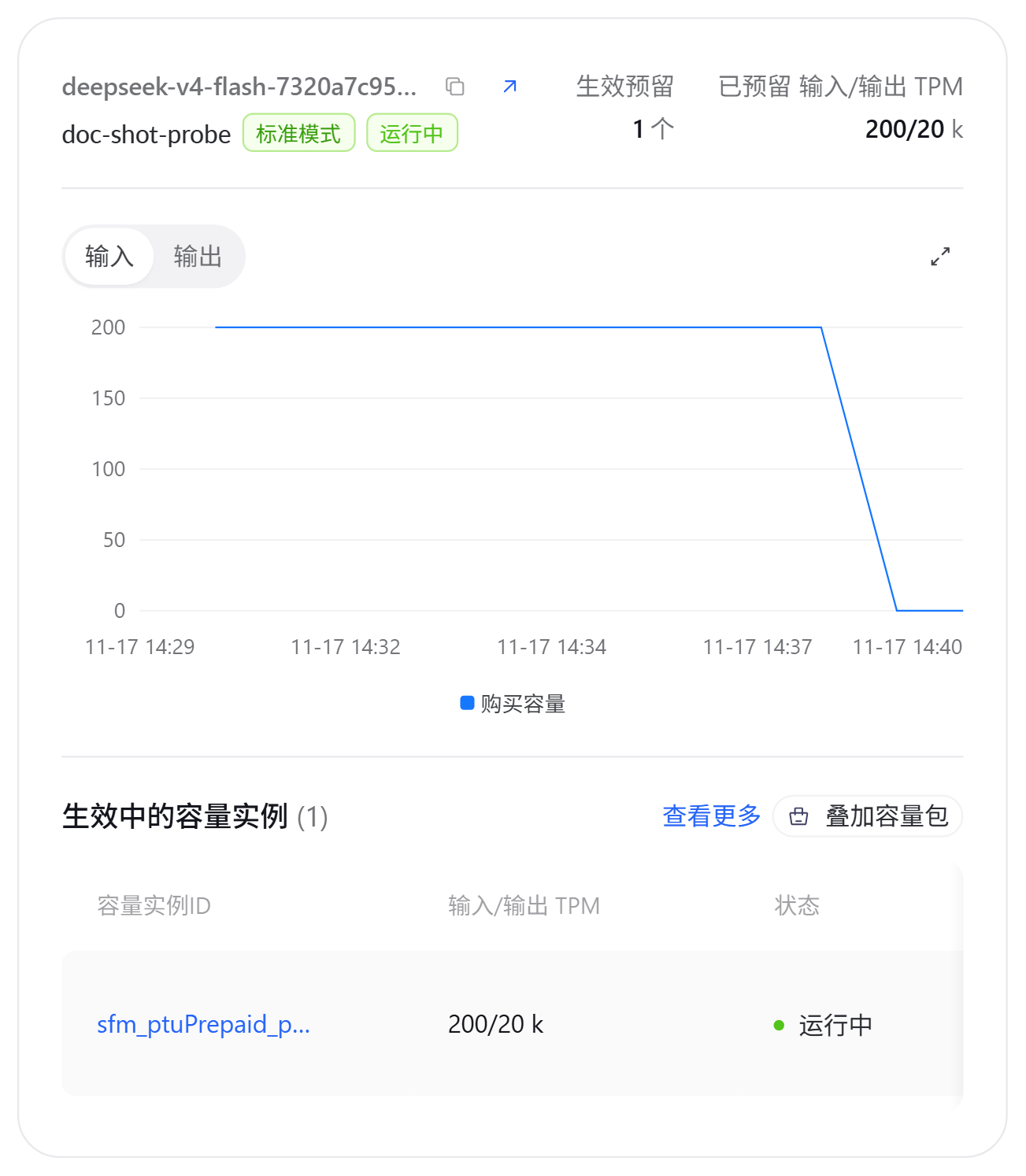
| Card field | Description |
|---|---|
| Mode tag, status | The inference mode of the reservation and the current status of the instance. |
| Active Reservations | The number of capacity instances in effect; the statistics include historical expired, stopped, and released reservations, so this is not equal to the currently available quantity. |
| Reserved input/output TPM | The total capacity of all instances under the model. |
Card details
The details section contains three tabs:
- Overview
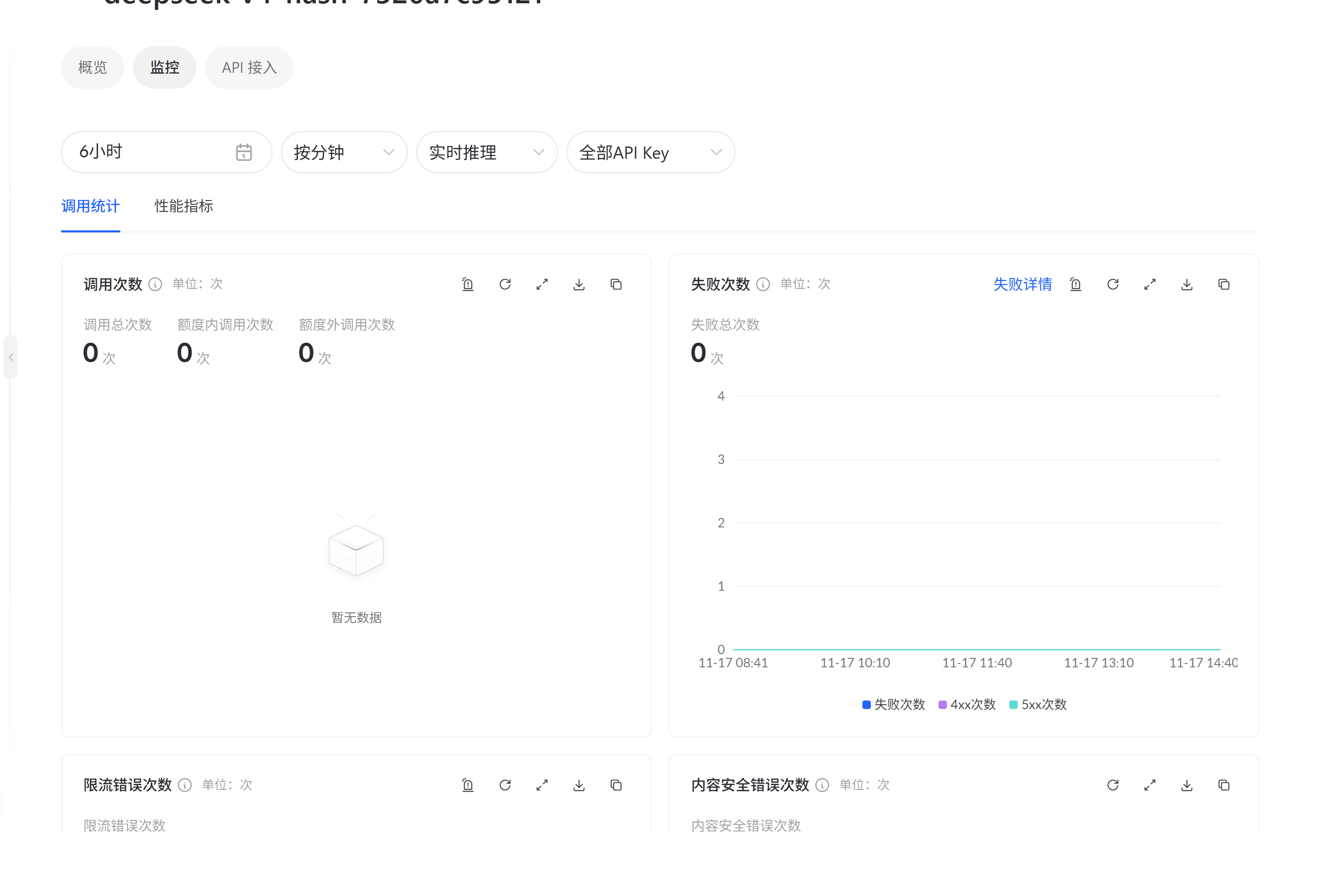
- Monitoring
- API Access
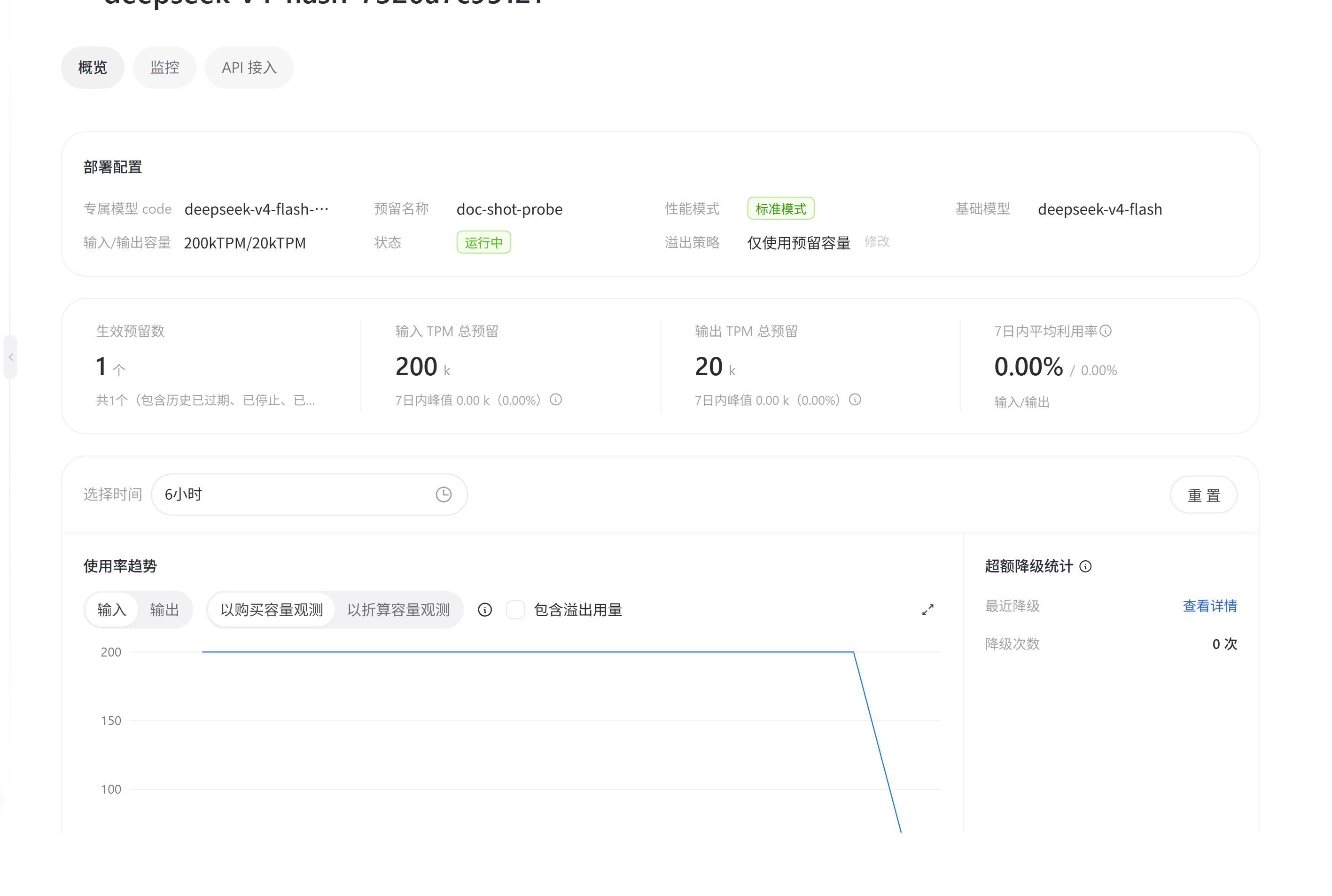
| Check item | Location | Criteria |
|---|---|---|
| Utilization | Statistics card (average utilization) and the Utilization Trend curve | A utilization rate persistently close to 100% indicates insufficient capacity. |
| Peak | Statistics card Peak within 7 days (peak capacity usage in the last 7 days) | A peak close to or exceeding the purchased capacity indicates insufficient capacity during peak hours. |
| Overage degradation | Overage Degradation Statistics (most recent degradation time and count, generated only under the auto spillover strategy) | Frequent degradation indicates frequent overage; scaling out is recommended (see Management operations). |
| Statistics mode | Description |
|---|---|
| Based on purchased capacity | Calculates the utilization rate based on the purchased capacity. |
| Based on converted capacity | Based on the capacity converted using the conversion factor (conversion method for long input and cache). |
| Including spillover usage | The usage additionally includes the portion that spills over to pay-as-you-go billing. |
Capacity instance list

| Column | Description |
|---|---|
| Capacity instance ID | The unique identifier of the instance, used to specify the instance when calling management OpenAPIs. |
| Input/output TPM | The input/output capacity of the instance. |
| Status | For the meaning, see Instance status. |
| Billing Cycle | Upfront/By Day, upfront/By 8-Hour Window, pay-as-you-go/By Hour. |
| Effective/expiration time | The effective and expiration times; the days remaining are displayed before expiration. |
| Auto-Renewal | On/Off; the switch takes effect immediately (upfront/By Day only). |
Management operations
The operations and constraints available for each billing method:
| Billing Method | Scaling | Renew | Unsubscribe / delete | Key constraints |
|---|---|---|---|---|
| Upfront/By Day | Supported | Supported (including auto-renewal) | Unsubscribe via User Center | Unsubscription is irreversible and the refund is settled based on the penalty coefficient; the API cannot directly release an upfront instance (this must be done through User Center) |
| Pay-as-you-go/By Hour | Supported | Not applicable (no expiration concept) | Deleting the instance stops billing | Instances scaled to zero can be deleted directly; all instances must be released before deleting the Model Code |
| By 8-Hour Window | Not supported | Not supported | Not supported | The capacity automatically becomes invalid after the window expires; auto-renewal is not supported |
| Operation | Problem solved | Entry | Applicable instances | Fees and rules |
|---|---|---|---|---|
| Add-on Capacity Package | Add a new capacity instance | Card Add-on Capacity Package/Buy Capacity, or next to the capacity instance list title | By Day and pay-as-you-go By Hour instances | Add-on capacity package billing |
| Scaling | Scale the capacity up/down on the original instance (including scaling to zero) | Capacity instance list Actions column | By Day and pay-as-you-go By Hour instances | Scale out, Scale down |
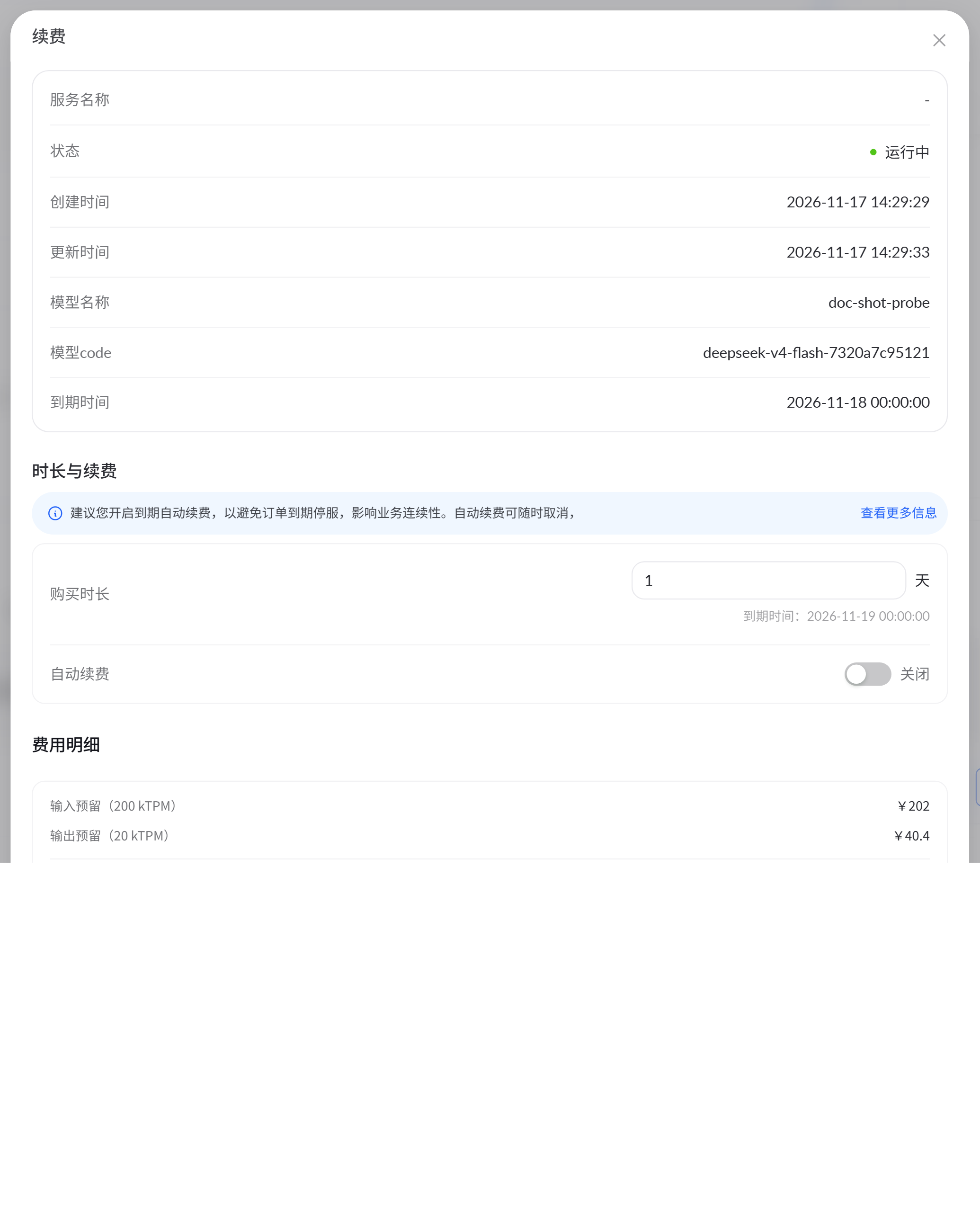
| Renew / auto-renewal | Extend the validity period and avoid interruption at expiration | Capacity instance list Actions column / auto-renewal column switch | By Day instances | Billing rules |
| Unsubscribe | Completely stop and release the instance | Capacity instance list Actions column (redirects to User Center) | By Day instances | Unsubscribe |
| Edit spillover policy | Determines whether the excess portion is converted to pay-as-you-go billing or a 429 is returned | Edit next to the spillover policy on the Overview tab | All instances | Spillover policy and billing |
Add-on capacity package
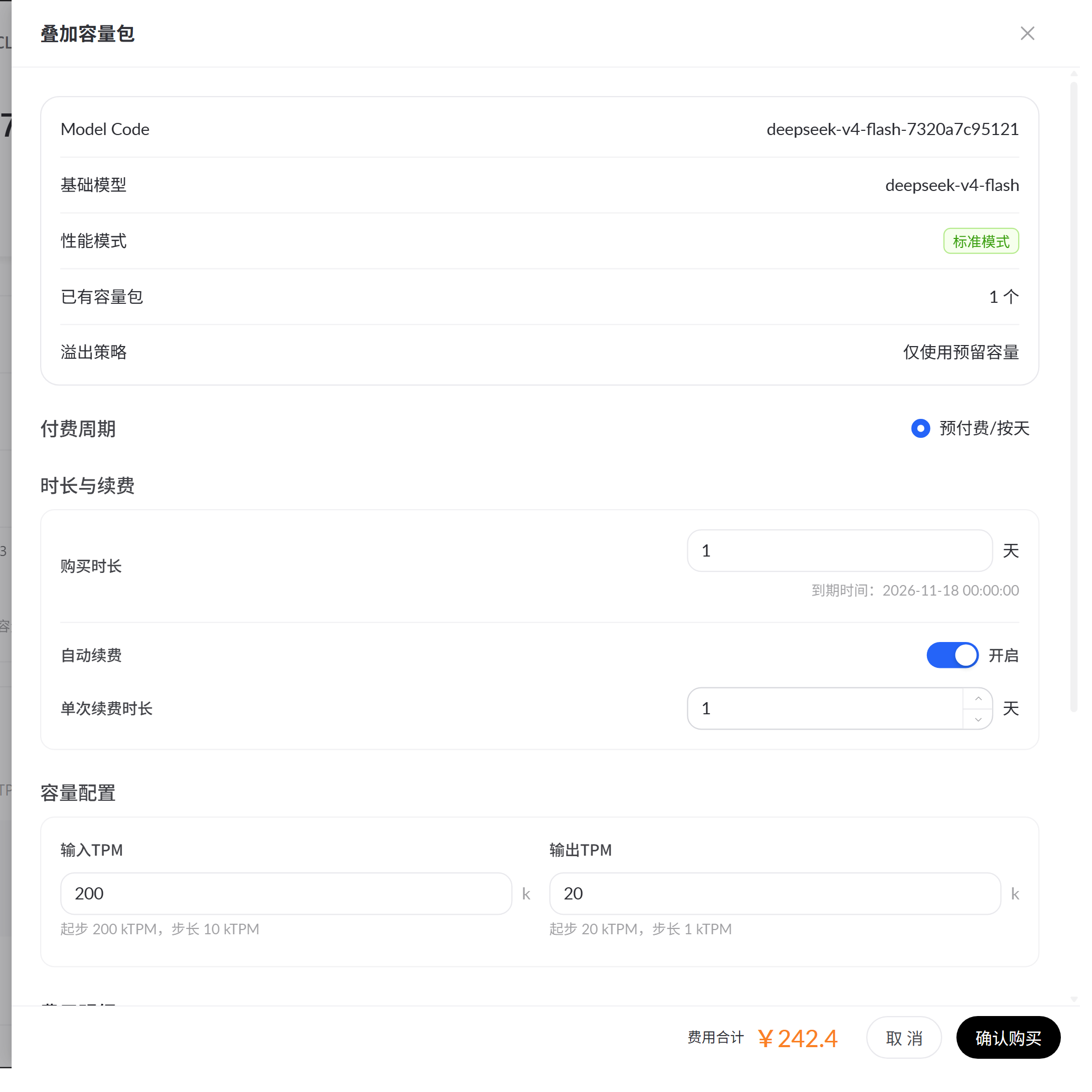
| Billing Cycle | Applicable conditions |
|---|---|
| Upfront/By Day | Applies to both upfront and pay-as-you-go reservations |
| Upfront/By 8-hour time slot | Only Standard mode Basic, and only some models are supported; for the supported list, see 8-hour time slot reservation billing |
| Method | Object of change | Billing |
|---|---|---|
| Add-on capacity pack | Adds an independent instance that coexists with the original instance | Purchased independently, with a selectable billing cycle and duration (for example, By 8-hour time slot) |
| Scaling | Adjusts the input/output TPM of the original instance | The added portion is billed based on the remaining validity period |
Scaling, Renewal, and Unsubscribe
All three operations are available in the Actions column of the capacity instance list:
- Scaling
- Renew
- Unsubscribe
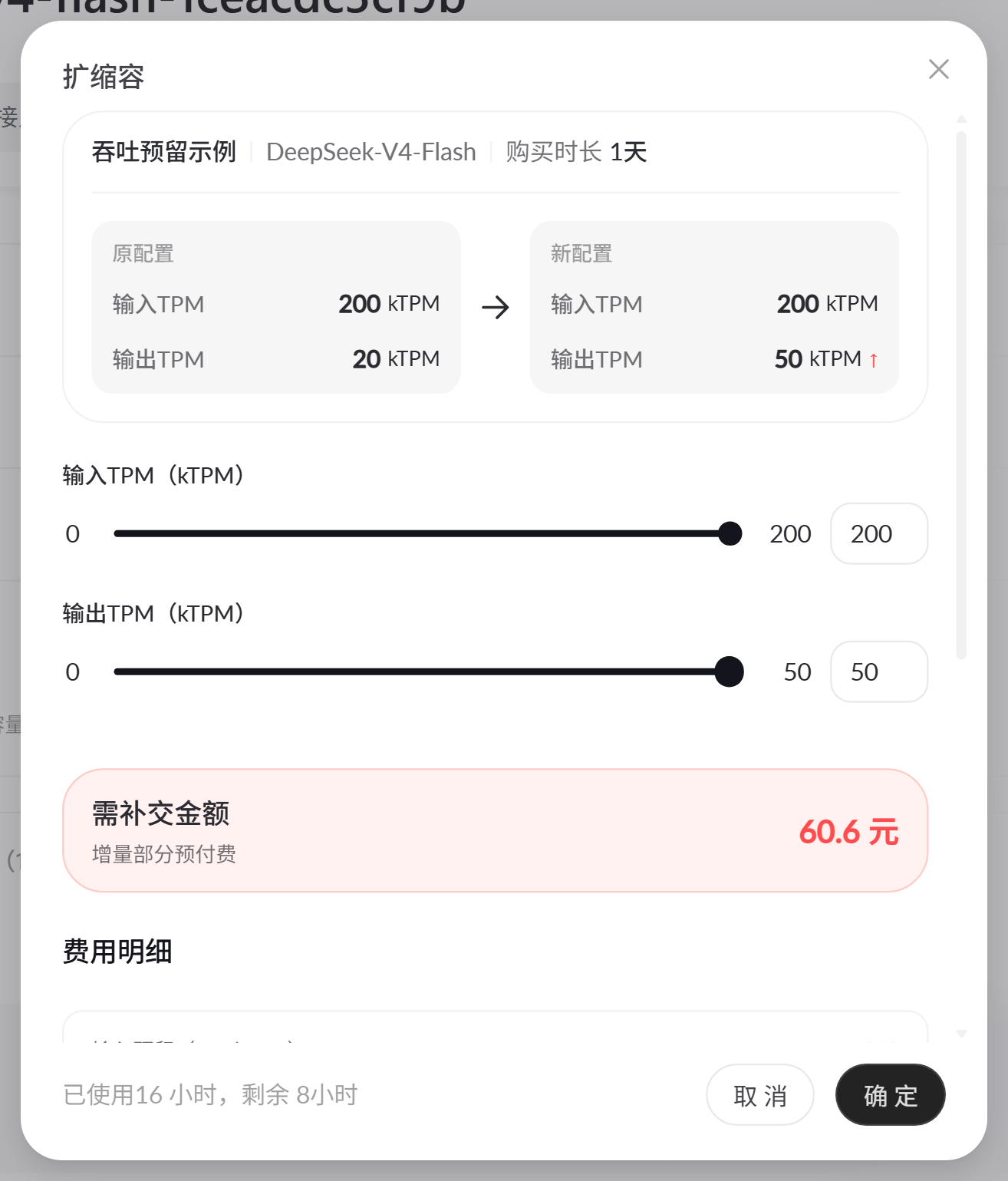
Both input and output TPM can be adjusted to 0 (zeroed out): once zeroed, capacity fees stop accruing, the dedicated model code is retained, and calls can be restored by scaling out. Scaling in and zeroing out are settled as downgrades for refunds, with a penalty coefficient of 1.2 for ≤30 days used and 1.0 for >30 days; for more information, see Scaling in. The penalty coefficient applies only to upfront instances; pay-as-you-go instances stop billing upon deletion and no refund is issued.
Edit the overflow policy
The overflow policy can be changed after creation: click Edit next to the overflow policy on the Overview tab. Whether the excess portion is billed by the pay-as-you-go billing method or returns 429 is determined by the overflow policy; for the behavioral differences and billing impact of the two policies, see Overflow policy and billing.
Instance status
The five instance statuses and their meanings:
| Status | Meaning and outcome |
|---|---|
| Running | Normal service; the dedicated model code can be called. |
| Pending | Created and waiting to take effect. |
| Updating | Scaling in progress. |
| Stopped | Three causes: expiration, overdue payment, or zeroed-out capacity. Instances stopped due to expiration or overdue payment recover after renewal; zeroed-out instances recover after scaling out again in the Scaling dialog. |
| Released | Resources have been reclaimed and recovery is not possible. |
FAQ
Q: What should I do when a call returns a 429 rate limit error?
Q: What should I do when a call returns a 429 rate limit error?
Troubleshoot in three steps:
- Check the overflow policy first: if it is Reserved capacity only, any traffic beyond the reserved capacity inevitably returns 429; you can change the overflow policy to Automatic overflow on the Overview tab.
- On the Overview tab, check Overage Degradation Statistics to confirm how often excess occurs.
- Frequent excess indicates insufficient capacity: increase capacity via Scaling, or purchase an add-on capacity pack.
Q: How do I troubleshoot a rising failure rate?
Q: How do I troubleshoot a rising failure rate?
On the Monitoring tab, triage by failure type: 4xx errors are usually issues with the request itself (parameters, authentication); 5xx errors are server errors and can be retried; for rate limiting errors, check capacity in the direction described in the previous item; for content safety errors, check the input content.
Q: What happens after expiration?
Q: What happens after expiration?
The instance is shut down immediately after expiration (calls are rejected, but renewal is still possible), and it is released 2 hours after shutdown with no recovery. We recommend keeping Auto-Renew on Expiration enabled. For the rules, see Expiration and lifecycle.
Q: How do I determine whether scaling out is needed?
Q: How do I determine whether scaling out is needed?
Check two signals on the Overview tab: the utilization curve stays persistently close to 100%, or the count in Overage Degradation Statistics increases frequently. If either signal persists, we recommend scaling out the input/output capacity.