

Visual understanding models can answer questions based on the images or videos that you provide. They support single or multiple image inputs and are suitable for various tasks, such as image captioning, visual question answering, and object localization.
Getting started
Prerequisites
- Obtain an API key and configure it as an environment variable.
- To make calls using an SDK, install the SDK. The DashScope Python SDK must be version 1.24.6 or later, and the DashScope Java SDK must be version 2.21.10 or later.
- OpenAI compatible
- DashScope
- Python
- Node.js
- Java
- curl
Response
Model performance
Image Q&A
Describe the content of an image or classify and label it, such as identifying people, places, animals, and plants.
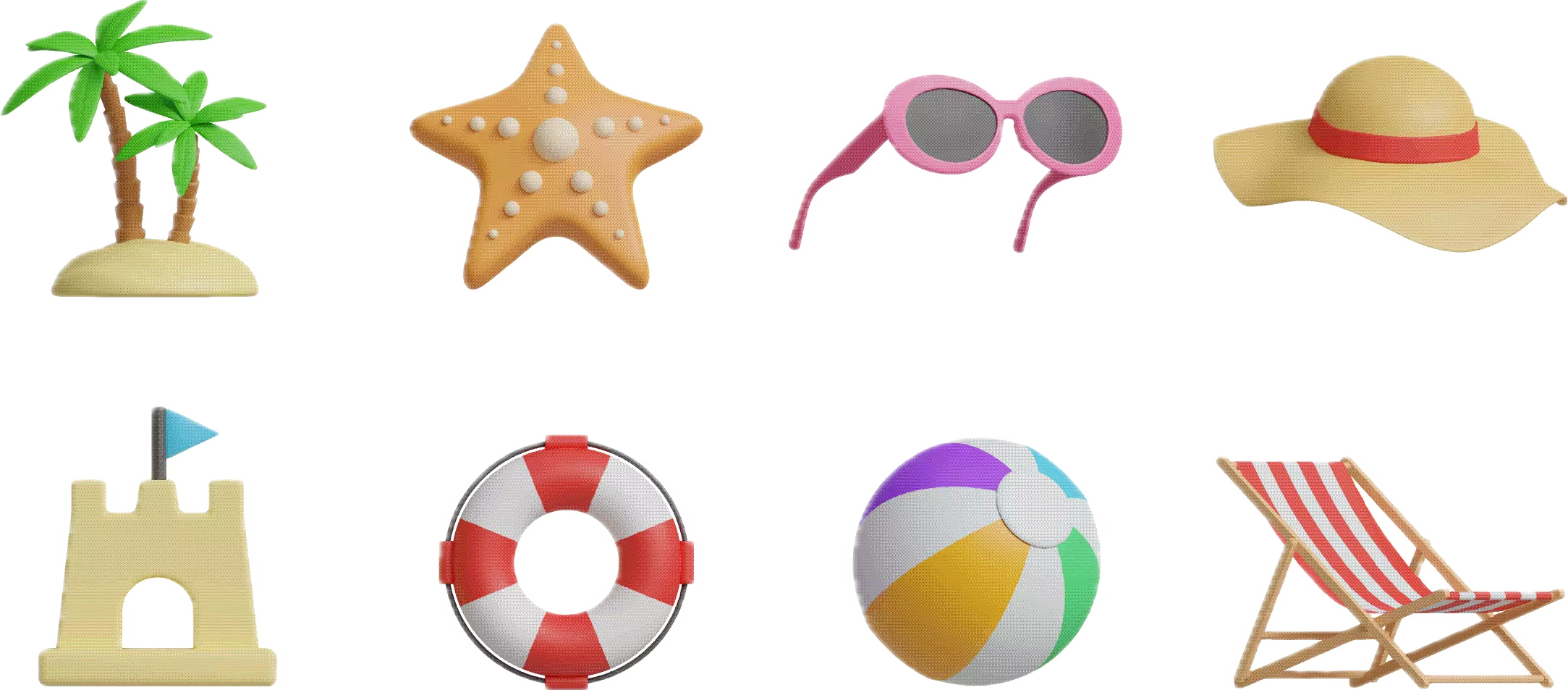 What item in this image should I use if the sun is too bright? | If the sun is too bright, you should use the pink sunglasses in the image. Sunglasses can effectively block strong light, reduce UV damage to your eyes, and help protect your vision and improve visual comfort in bright sunlight. |
|---|
Creative writing
Generate vivid text descriptions based on image or video content, suitable for creative scenarios such as story writing, copywriting, and short video scripts.
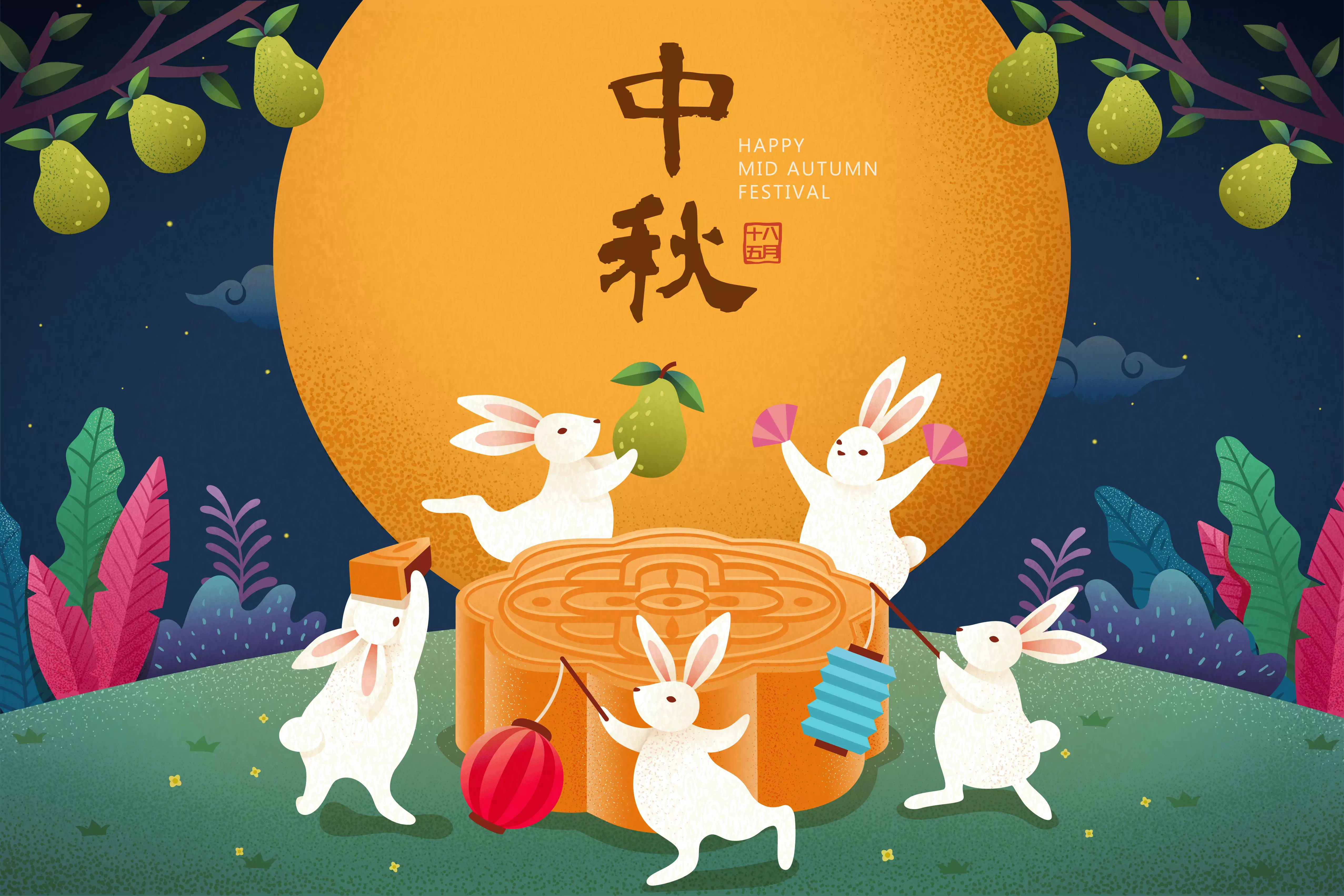 Please write an interesting social media post based on the content of the image. | Sure. This image is filled with a rich Mid-Autumn Festival atmosphere, cleverly combining classical and modern elements. Based on the main elements in the image, I have prepared several social media posts in different styles for you to choose from. Poetic and beautiful style Tonight, the moon is bright for all to see, but who knows where the autumn thoughts will fall? Chang'e flies to the moon, and the Jade Rabbit pounds medicine. The romance of the ancients is lit up tonight. May this bright moon light your way home and carry my deepest thoughts. Happy Mid-Autumn Festival! Warm Wishes Style The moon is full, and people are reunited. The Mid-Autumn night is the gentlest. Watch the fireworks bloom, admire the full moon in the sky, take a bite of a mooncake, and want for good health. May all that you and I want for come true. Happy Mid-Autumn Festival to everyone, and may your families be happy! |
Text recognition and information extraction
Recognize text and formulas in images, or extract information from receipts, certificates, and forms. Supports formatted text output.
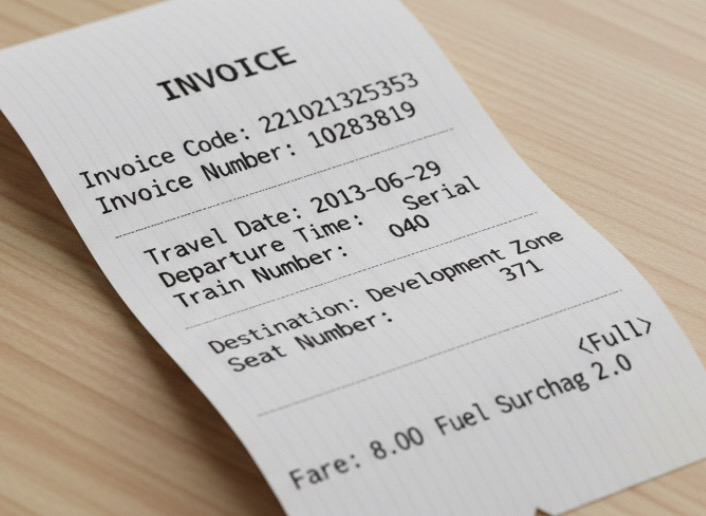 Extract the following from the image: ['Invoice Code', 'Invoice Number', 'Destination', 'Fuel Surcharge', 'Fare', 'Date', 'Departure Time', 'Train Number', 'Seat Number']. Please output in JSON format. | { "Invoice Code": "221021325353", "Invoice Number": "10283819", "Destination": "Development Zone", "Fuel Surcharge": "2.0", "Fare": "8.00<Full>", "Date": "2013-06-29", "Departure Time": "Rolling", "Train Number": "040", "Seat Number": "371" } |
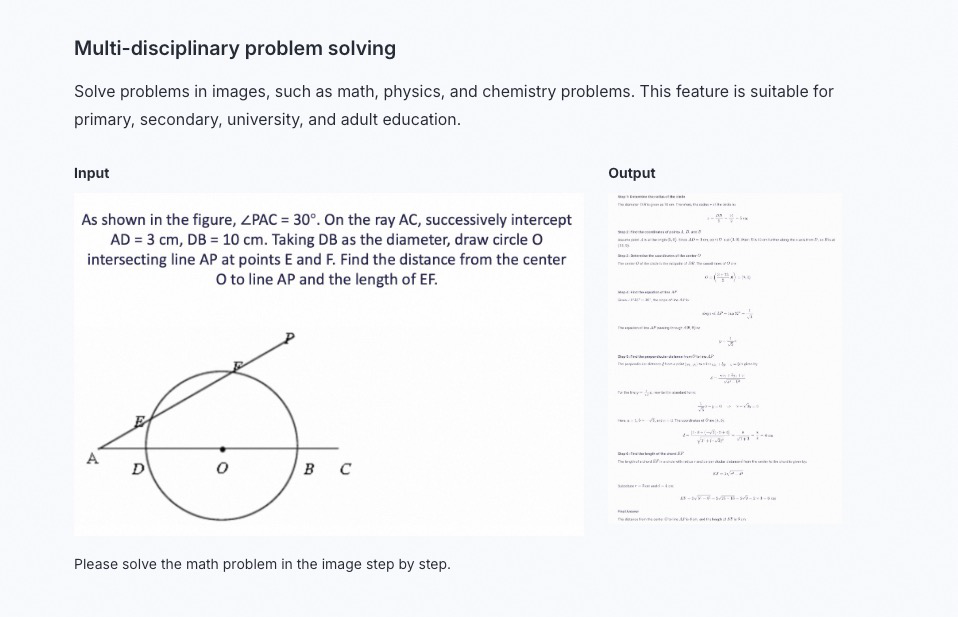
Multi-disciplinary problem solving
Solve math, physics, chemistry, and other problems in images. Suitable for K-12, university, and adult education.
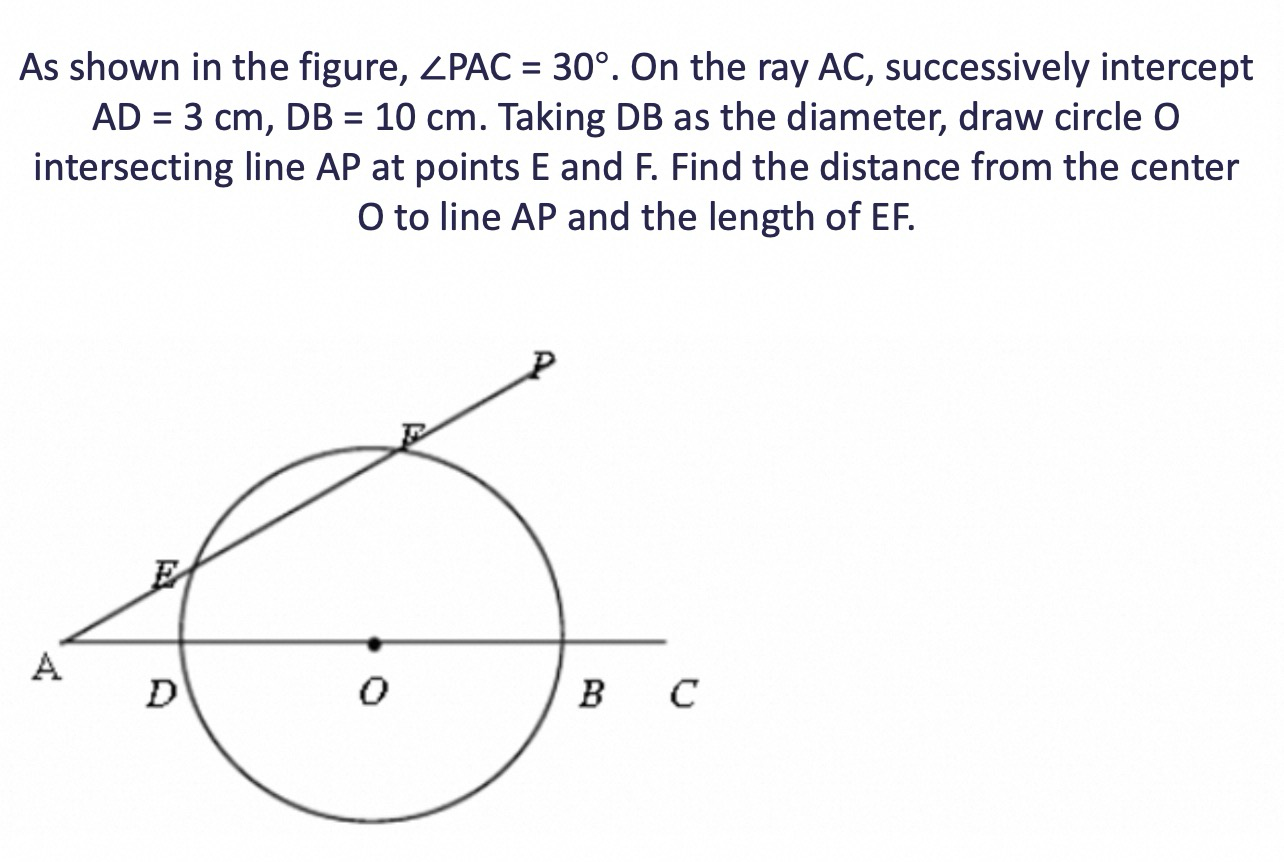 Solve the math problem in the graph step by step. | 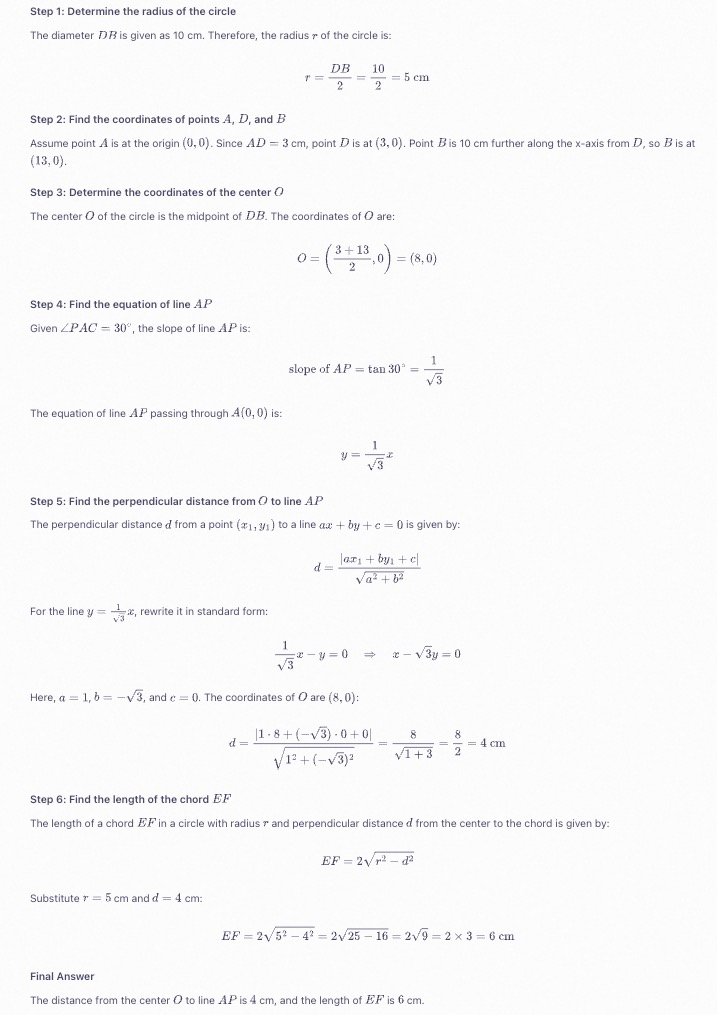 |
|---|
Visual programming
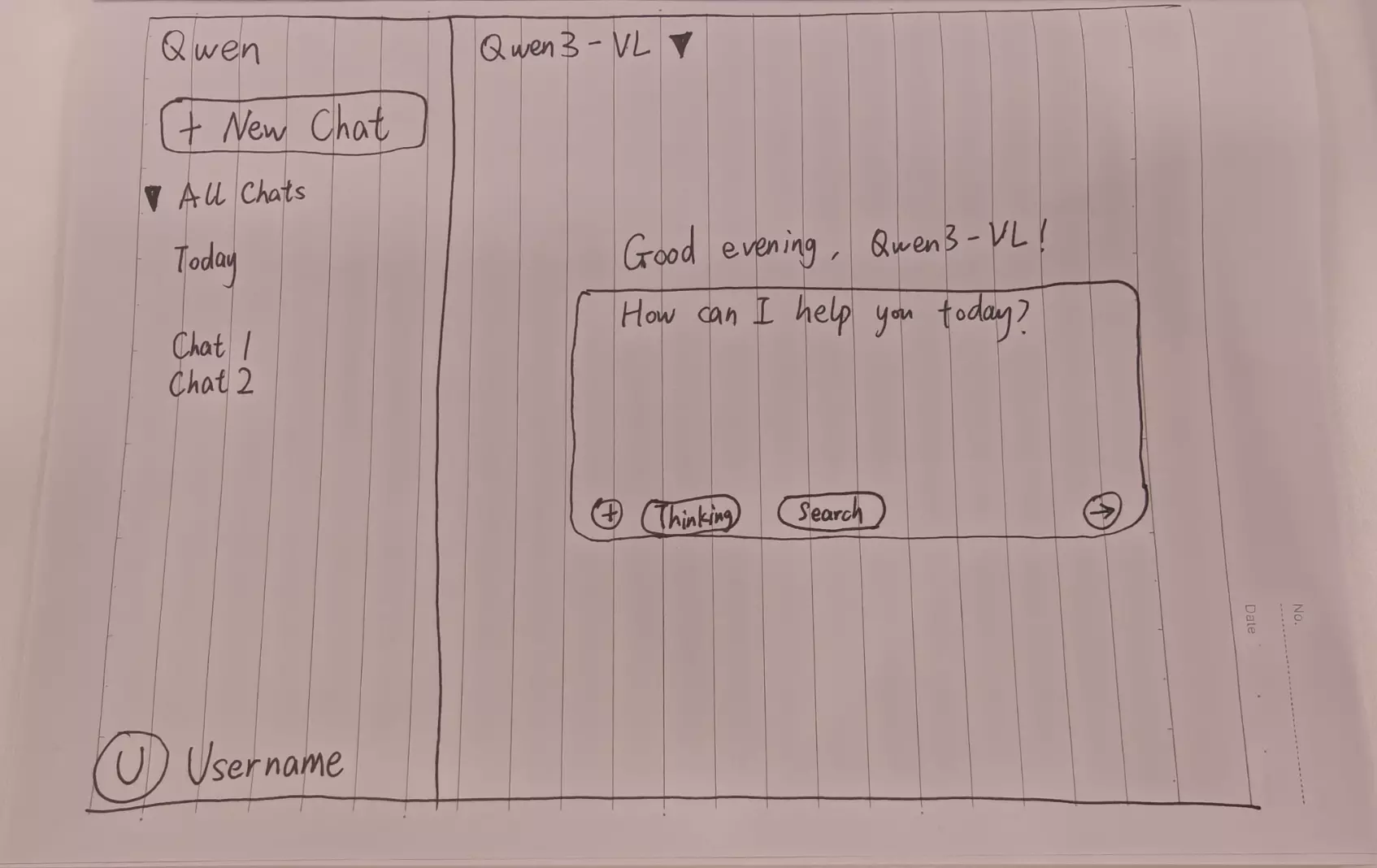
Generate code from images or videos. You can use this feature to generate HTML, CSS, and JS code from design drafts, website screenshots, and more.
Create a webpage using HTML and CSS based on my sketch. The main color should be black. |
Webpage preview |
|---|

Object localization
Supports 2D and 3D localization. You can use this feature to determine object orientation, perspective changes, and occlusion relationships. 3D localization is a new capability added to the Qwen3-VL model.
The object localization performance of the Qwen2.5-VL model is robust within the resolution range of 480 × 480 to 2560 × 2560. Outside this range, the detection accuracy may decrease, with occasional detection frame drift.
For information about how to draw the localization results on the original image, see FAQ.
2D localization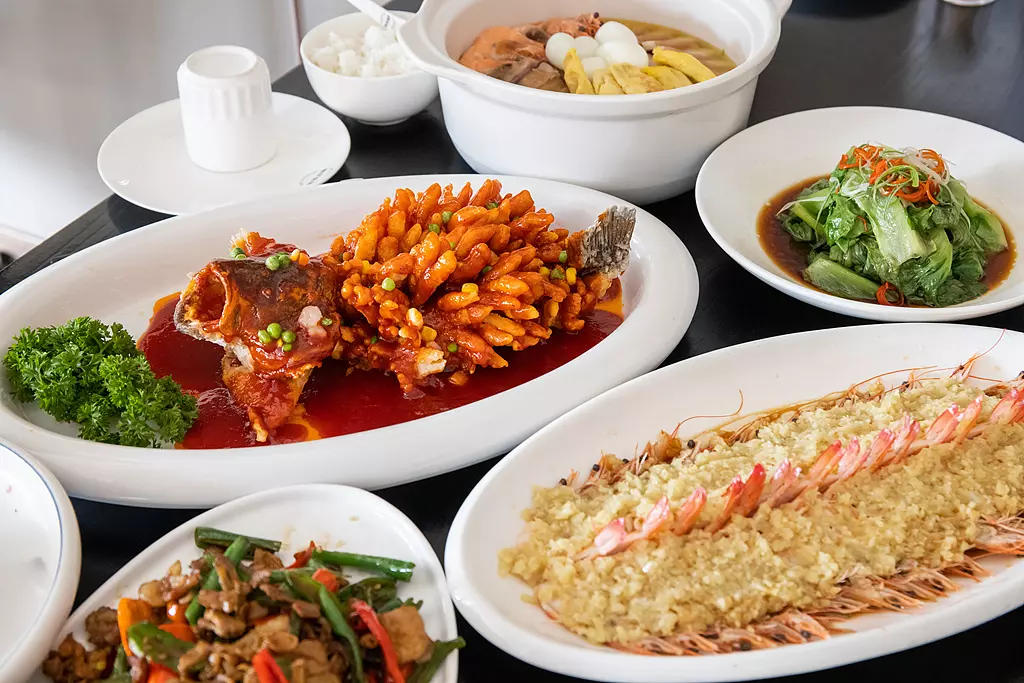
| Visualization of 2D localization results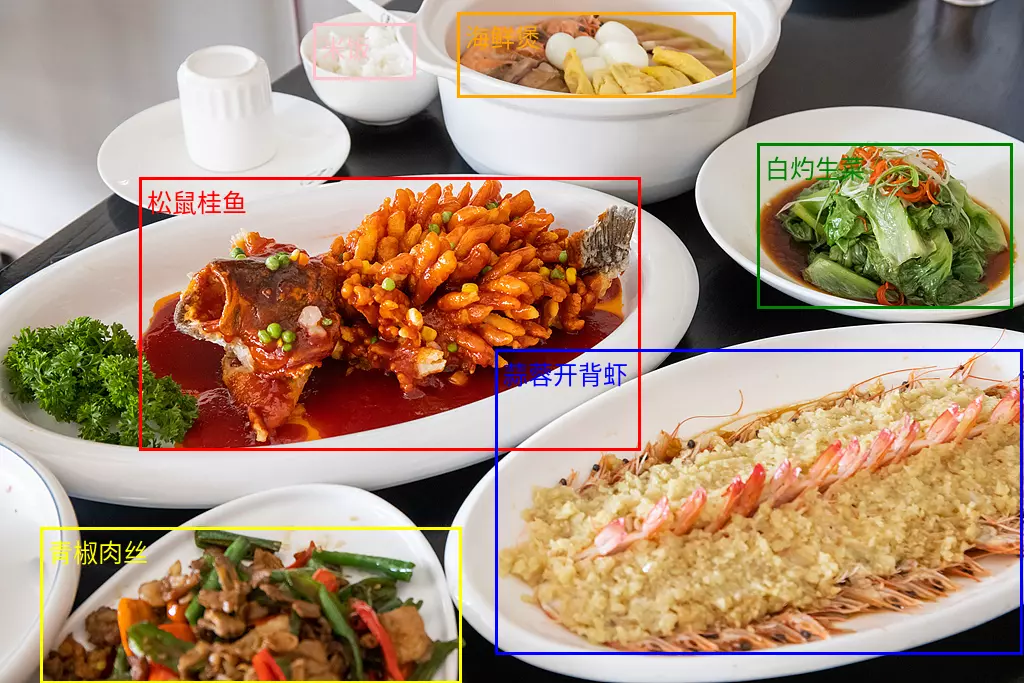 |
3D localization 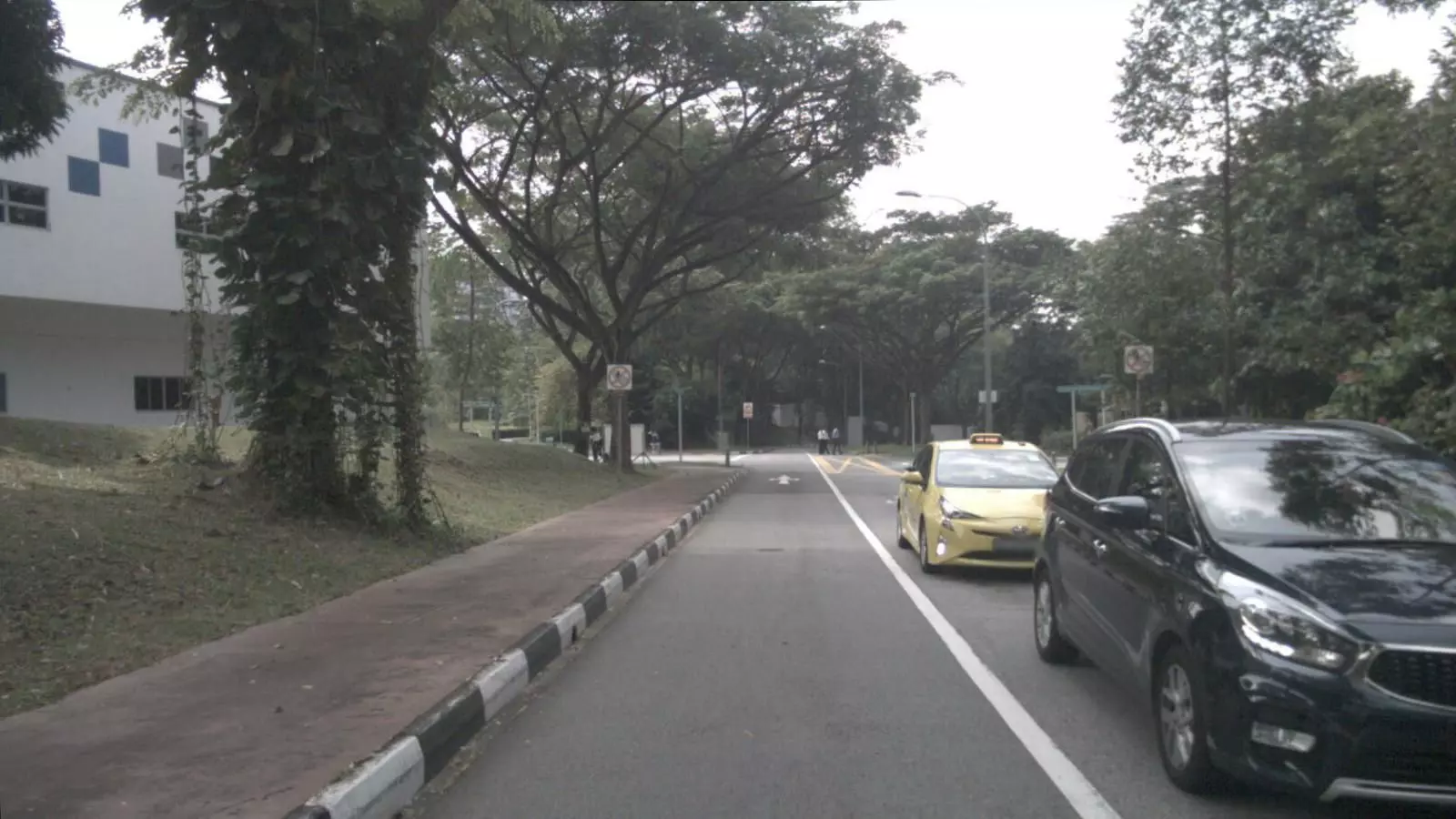 [{"bbox_3d": [x_center, y_center, z_center, x_size, y_size, z_size, roll, pitch, yaw], "label": "category"}]. |
Visualization of 3D localization results 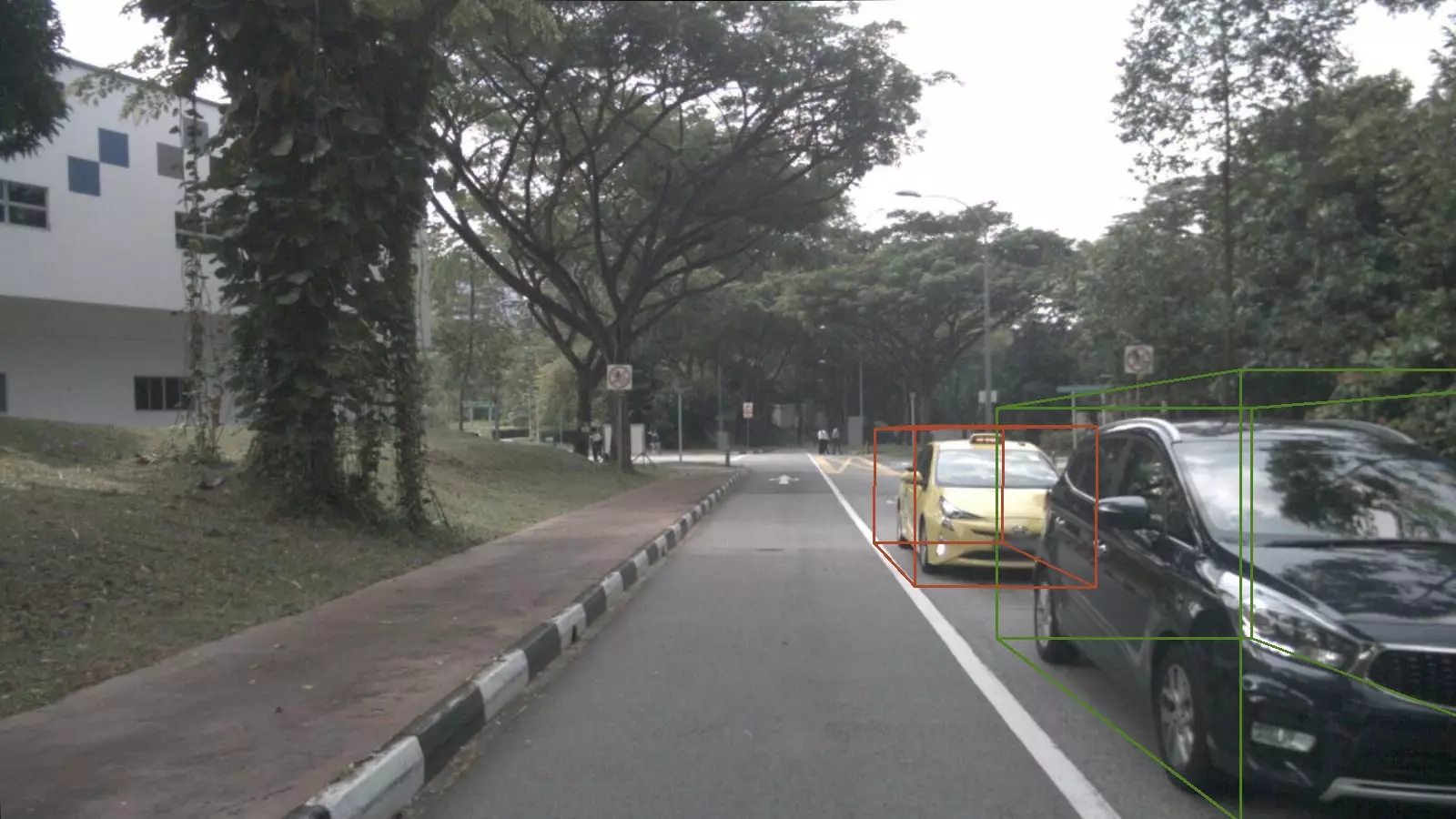 |
Document parsing
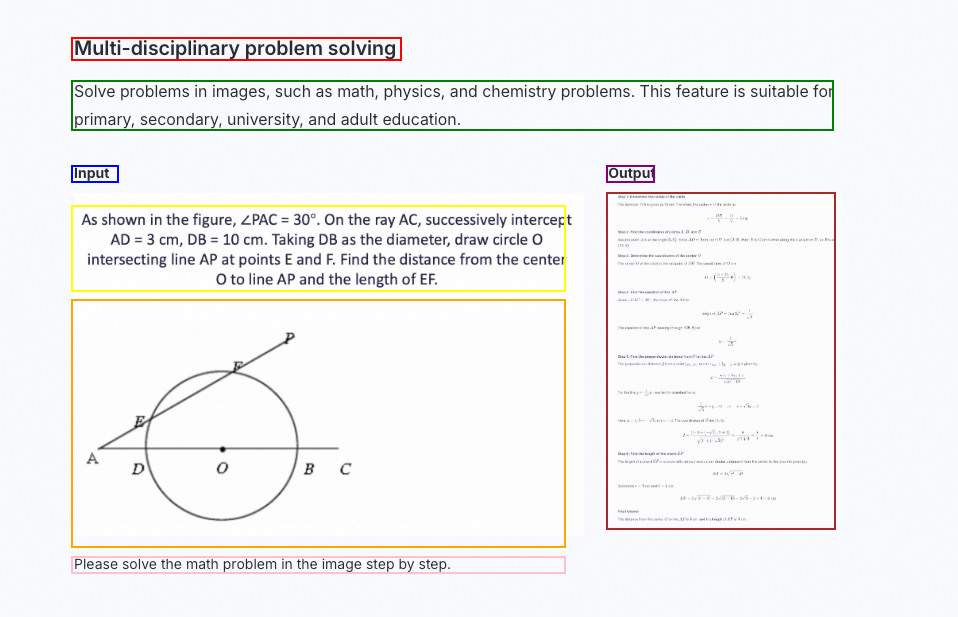
Parse image-based documents (such as scanned copies or image PDFs) into QwenVL HTML or QwenVL Markdown format. This format not only accurately recognizes text but also obtains the position information of elements such as images and tables. The Qwen3-VL model adds the ability to parse into Markdown format.
The recommended prompts are as follows:qwenvl html(to parse into HTML format) orqwenvl markdown(to parse into Markdown format).
qwenvl markdown. |
Visualization of results |
|---|
Video understanding
Analyze video content, such as locating specific events and obtaining timestamps, or generating summaries of key time periods.
| Please describe the series of actions of the person in the video. Output the start time (start_time), end time (end_time), and event (event) in JSON format. Use HH:mm:ss for the timestamp. | {"events": [{"start_time": "00:00:00","end_time": "00:00:05","event": "The person walks towards the table holding a cardboard box and places it on the table."},{"start_time": "00:00:05","end_time": "00:00:15","event": "The person picks up a scanner and scans the label on the cardboard box."},{"start_time": "00:00:15","end_time": "00:00:21","event": "The person puts the scanner back in its place and then picks up a pen to record information in a notebook."}]} |
Core features
Enable or disable thinking mode
-
The
qwen3.8,qwen3.7,qwen3.6,qwen3.5, andqwen3-vl-plusseries models are hybrid thinking models. They can either think before responding or respond directly. Use theenable_thinkingparameter to control whether to enable thinking mode:true: Enables thinking mode. The default value for theqwen3.8,qwen3.7,qwen3.6, andqwen3.5series models istrue.false: Disables thinking mode. The default value for theqwen3-vl-plusseries models isfalse.
-
Models with the
thinkingsuffix are thinking-only models. They always think before responding, and this feature cannot be disabled.
- OpenAI compatible
- DashScope
enable_thinking parameter is not a standard OpenAI parameter. If you use the OpenAI Python SDK, pass it through extra_body.Multiple image inputs
Visual understanding models support passing multiple images in a single request, which can be used for tasks such as product comparison and multi-page document processing. To do this, simply include multiple image objects in the content array of the user message.
- OpenAI compatible
- DashScope
- Python
- Node.js
- curl
Response
Video understanding
Visual understanding models can understand video content provided as an image list (video frames) or a video file. The following examples show how to understand online videos or image lists specified by a URL. For more information about video limits or the number of images that can be passed in an image list, see Video limits.
For better performance when understanding video files, use the latest or recent snapshot versions of the models.
- Video files
- Image list
-
fps: Controls the frame extraction frequency. One frame is extracted every 1/fps seconds. The value range is [0.1, 10], and the default value is 2.0.
- For scenes with fast motion, set a higher fps value to capture more detail.
- For static scenes or long videos, set a lower fps value to improve performance.
- max_frames: The maximum number of frames to extract from a video. The system calculates the total frames based on the video's fps. If the total number of frames exceeds this limit, the system automatically samples frames evenly to meet the limit. This parameter is available only when using the DashScope SDK.
- OpenAI compatible
- DashScope
When you send a video file directly to the visual understanding model using the OpenAI SDK or HTTP, set the"type"parameter in the user message to"video_url".
Pass a local file (Base64 encoding or file path)
Visual understanding models support two methods for uploading local files: Base64 encoding and direct file path upload. You can choose an upload method based on the file size and SDK type. For recommendations, see How to choose a file upload method. Both methods must meet the file requirements described in Image limitations.
- Upload using Base64 encoding
- Upload using a file path
Steps to pass a Base64-encoded string (image example)
Steps to pass a Base64-encoded string (image example)
-
Encode the file: Convert the local image to a Base64 encoding.
Sample code to convert an image to Base64 encoding
-
Build a Data URL in the following format:
data:[MIME_type];base64,{base64_image}.- Replace
MIME_typewith the actual media type. Ensure that it matches theMIME Typevalue in the Supported image formats table, such asimage/jpegorimage/png. base64_imageis the Base64 string generated in the previous step.
- Replace
-
Call the model: Pass the
Data URLusing theimageorimage_urlparameter.
- Image
- Video file
- Image list
- Pass using a file path
- Base64-encoded input
Process high-resolution images
The visual understanding model API has a limit on the number of visual tokens for a single encoded image. With default configurations, high-resolution images are compressed, which may cause loss of detail and affect understanding accuracy. Enable vl_high_resolution_images or adjust max_pixels to increase the number of visual tokens. This retains more image details and improves understanding.
View the pixels per visual token, token limit, and pixel limit for each model
View the pixels per visual token, token limit, and pixel limit for each model
If the pixel count of the input image exceeds the model's pixel limit, the image is downscaled to fit within the limit.
Model | Pixels per token | vl_high_resolution_images | max_pixels | Token limit | Pixel limit |
|
|
|
|
|
|
| Customizable. The default value is | Determined by |
| ||
Open source |
|
|
|
|
|
| Customizable. The default value is | Determined by |
|
-
When
vl_high_resolution_images=true, the API uses a fixed resolution policy and ignores themax_pixelssetting. This is suitable for recognizing fine text, small objects, or rich details in images. -
When
vl_high_resolution_images=false, the final pixel limit depends on the value of themax_pixelsparameter.- For cost-sensitive scenarios where you want to reduce visual token consumption: Use the default value of
max_pixelsor set it to a smaller value. - If you want to focus on certain details and can accept a lower processing speed, increase the value of
max_pixelsas needed.
- For cost-sensitive scenarios where you want to reduce visual token consumption: Use the default value of
- OpenAI compatible
- DashScope
vl_high_resolution_images is not a standard OpenAI parameter. The method for passing it varies across different language SDKs:- Python SDK: Must be passed through the
extra_bodydictionary. - Node.js SDK: Can be passed directly as a top-level parameter.
More usages
Limits
Input file limits
- Image limits
- Video limits
-
Image resolution:
-
Minimum size: The width and height of the image must both be greater than
10pixels. -
Aspect ratio: The ratio of the long side to the short side for both original and scaled images must not exceed
200:1.For information about the image scaling logic, see the
smart_resizefunction in Calculate image tokens -
Maximum pixels:
- Keep the image resolution within
8K (7680x4320). Images with a higher resolution may cause API call timeouts because of large file sizes and long network transmission times. - Automatic scaling: The model can adjust the image size using
max_pixelsandmin_pixels. Providing high-resolution images does not improve detection accuracy. Instead, it increases the risk of failed calls. Scale images to a reasonable size on the client before uploading.
- Keep the image resolution within
-
Minimum size: The width and height of the image must both be greater than
-
Supported image formats
-
For resolutions below 4K
(3840x2160), the following image formats are supported:Image format
Common extensions
MIME type
BMP
.bmp
image/bmp
JPEG
.jpe, .jpeg, .jpg
image/jpeg
PNG
.png
image/png
TIFF
.tif, .tiff
image/tiff
WEBP
.webp
image/webp
HEIC
.heic
image/heic
-
For resolutions between
4K (3840x2160)and8K (7680x4320), only the JPEG, JPG, and PNG formats are supported.
-
For resolutions below 4K
-
Image size:
The total request body for all interfaces must not exceed
64 MB; when passing multiple images, they share this overall request body quota. DashScope domains limit the request body to 16 MiB; use the{WorkspaceId}.{region}.maas.aliyuncs.comworkspace domain instead.- When passed as a public URL: A single image cannot exceed
20 MBfor Qwen3.8, Qwen3.7, Qwen3.6, and Qwen3.5 and Qwen3-VL series models. For other models, a single image cannot exceed10 MB. - When passed as a local path: A single image cannot exceed
10 MB. - When passed as Base64 encoding: For Qwen3.8, Qwen3.7, Qwen3.6, Qwen3.5 and Qwen3-VL series models, the original image file before encoding cannot exceed
20 MB. For other models, it cannot exceed10 MB. The resulting Data URI string cannot exceed20 MBon the OpenAI-compatible API and DashScope, or32 MBon the Anthropic-compatible API.
To compress a file, see How to compress an image or video to the required size.
- When passed as a public URL: A single image cannot exceed
-
Image quantity limit: The maximum number of images supported for multi-image input varies by the input method:
-
When passed as public URLs or local paths:
- Qwen3.8-Max, Qwen3.8-Flash, Qwen3.7-Plus series: Up to 2,048 images
- Qwen3.7-Flash, Qwen3.6-Plus, Qwen3.6-Flash, Qwen3.5-Plus, Qwen3.5-Flash, Qwen3-VL, Qwen-VL, QVQ series: Up to 256 images
- For Qwen-Omni series, see Omni-modal.
- When passed as Base64-encoded strings: Up to 250 images
-
When passed as public URLs or local paths:
The total number of tokens for all images is also limited by the model's maximum input token limit. The total token count for all images and text must not exceed the model's maximum input.
File input methods
-
Public URL: Provide a publicly accessible file address that supports the HTTP or HTTPS protocol. For optimal stability and performance, upload the file to OSS to obtain a public URL. Model Studio cannot access OSS internal endpoints, whose addresses contain
-internal, such ashttps://<bucket>.oss-cn-hangzhou-internal.aliyuncs.com/image.jpg. If you pass an internal address, the file download fails andInvalidParameteris returned with the messageFailed to download multimodal content. Use an OSS public endpoint instead, such ashttps://<bucket>.oss-cn-hangzhou.aliyuncs.com/image.jpg, or a presigned OSS URL. - Base64 encoding: Convert the file to a Base64-encoded string and then pass it.
- Local file path (DashScope SDK only): Pass the path of a local file.
For recommendations on how to choose a file input method, see How do I choose a file upload method?
Using in a production environment
- Image and video pre-processing: Visual understanding models have size limits for input files. To compress files, see Image or video compression methods.
-
Processing text files: Visual understanding models only support image and video files. They do not support processing TXT, Word (.doc/.docx), PDF, or other text-based files. Use one of the following workarounds:
- Convert the text file to an image format. Use an image processing library, such as pdf2image for Python, to convert the file page by page into multiple high-quality images. Then, pass the images to the model using the multi-image input method.
- Use Qwen-Long, which supports uploading documents and conducting conversations by passing information through
file-id.
-
Fault tolerance and stability
- Timeout handling: In non-streaming calls, a timeout error occurs if the model does not finish generating output within 300 seconds. When a timeout occurs, the generated content is returned in the response body. A response header that contains
x-dashscope-partialresponse: trueindicates that the response timed out. Use the partial mode feature, which is supported by some models. Add the generated content to themessagesarray and send the request again. This allows the Large Language Model (LLM) to continue generating content. For more information, see Continue generation from incomplete output. - Client-side timeout configuration: The preceding timeout is a server-side timeout that occurs when the model does not finish generating output within 300 seconds. It is different from the default client-side timeout of the SDK. When you process large images, such as a 4000 x 4000 pixel image, a request may take longer than the default client-side timeout of the SDK and be interrupted with an
APITimeoutError, even though the server-side 300-second limit is not reached. To avoid this, usewith_optionsin the OpenAI Python SDK to extend the client-side timeout:
- Timeout handling: In non-streaming calls, a timeout error occurs if the model does not finish generating output within 300 seconds. When a timeout occurs, the generated content is returned in the response body. A response header that contains
- Streaming output: Set
stream=Trueso that the model returns content incrementally instead of waiting for a single complete response. This prevents client-side timeouts caused by long-running non-streaming calls when you process large images:
- Retry mechanism: Design a reasonable API call retry logic, such as exponential backoff, to handle network fluctuations or temporary service unavailability.
Billing and rate limiting
-
Billing:Total cost is calculated based on the total number of input and output tokens. Input and output prices are available in the Model Studio console.
- Token composition:Input tokens consist of text tokens and tokens converted from images or videos. Output tokens are the text generated by the model. In thinking mode, the model's thought process is also counted as output tokens. If the thought process is not output in thinking mode, billing follows the pricing for non-thinking mode.
-
Calculate tokens for images and videos:Use the following code to calculate the token consumption for images or videos. The estimated result is for reference only. Actual usage is based on the API response.
Calculate tokens for images and videos
- Images
- Videos
Formula:Image Tokens = h_bar * w_bar / token_pixels + 2-
h_bar, w_bar: The height and width of the scaled image. Before processing an image, the model performs pre-processing to scale it down to a specific pixel limit. This limit depends on the values of themax_pixelsandvl_high_resolution_imagesparameters. For more information, see Process high-resolution images. -
token_pixels: The pixel value corresponding to each visualtoken. This varies by model:qwen3.8-series,qwen3.7-series,qwen3.6-series,qwen3.5-series,Qwen3-VL:Eachtokencorresponds to32x32pixels.QVQand otherQwen2.5-VLmodels:Each token corresponds to28x28pixels.
- View bills:View bills or top up your account on the Expenses and Costs page in the Alibaba Cloud Management Console.
- Rate limiting:For more information about the rate limiting conditions for visual understanding models, see Rate limiting.
- Free quota(Singapore region only): A free quota of 1 million tokens is provided for visual understanding models. The 90-day validity period starts from the date you enable Model Studio or your model request is approved.
API reference
For more information about the input and output parameters of the visual understanding model, see text generation.
FAQ
How do I choose a file upload method?
How do I choose a file upload method?
File type | File specifications | DashScope SDK (Python, Java) | OpenAI compatible / DashScope HTTP |
|---|---|---|---|
Image | Greater than 7 MB and less than 10 MB | Pass the local path | Only public network URLs are supported. Use Alibaba Cloud Object Storage Service |
Less than 7 MB | Pass the local path | Base64 encoding | |
Video | Greater than 100 MB | Only public network URLs are supported. Use Alibaba Cloud Object Storage Service | Only public network URLs are supported. Use Alibaba Cloud Object Storage Service |
Greater than 7 MB and less than 100 MB | Pass the local path | Only public network URLs are supported. Use Alibaba Cloud Object Storage Service | |
Less than 7 MB | Pass the local path | Base64 encoding |
Base64 encoding increases data size. The original file size must be less than 7 MB.
Use Base64 or a local path to avoid server-side download timeouts and improve stability.
How do I compress an image or video to the required size?
How do I compress an image or video to the required size?
Image compression methods
Image compression methods
- Online tools: Use online tools such as CompressJPEG to compress images.
- Local software: Use software such as Photoshop to adjust the quality when exporting.
- Code implementation:
Video compression methods
Video compression methods
- Online tools: Use online tools such as FreeConvert to compress videos.
- Local software: Use software such as HandBrake.
- Code implementation: Use the FFmpeg tool. For more information, see the official FFmpeg website.
After the model outputs object location results, how do I draw detection frames on the original image?
After the model outputs object location results, how do I draw detection frames on the original image?
- Qwen2.5-VL: The returned coordinates are absolute values in pixels, relative to the top-left corner of the scaled image. To draw detection frames, see the code in qwen2_5_vl_2d.py.
- Qwen3-VL, Qwen3.5, Qwen3.6, and Qwen3.7 series (such as qwen3.5-plus, qwen3.6-plus, and qwen3.7-plus): The returned coordinates are relative and normalized to the range
[0, 999]. To draw detection frames, see the code in qwen3_vl_2d.py (2D positioning) or qwen3_vl_3d.zip (3D positioning).