
Visual understanding

Text extraction (Qwen-OCR)

Qwen-OCR is a visual understanding model that extracts text and structured data from images — scanned documents, tables, receipts, and more. It handles multiple languages and supports advanced OCR tasks: information extraction, table parsing, formula recognition, and document parsing.

Try it online: Go to the Alibaba Cloud Model Studio console, select the region in the upper-right corner, go to the vision page, and select Qwen OCR.

Examples

Input imageRecognition result
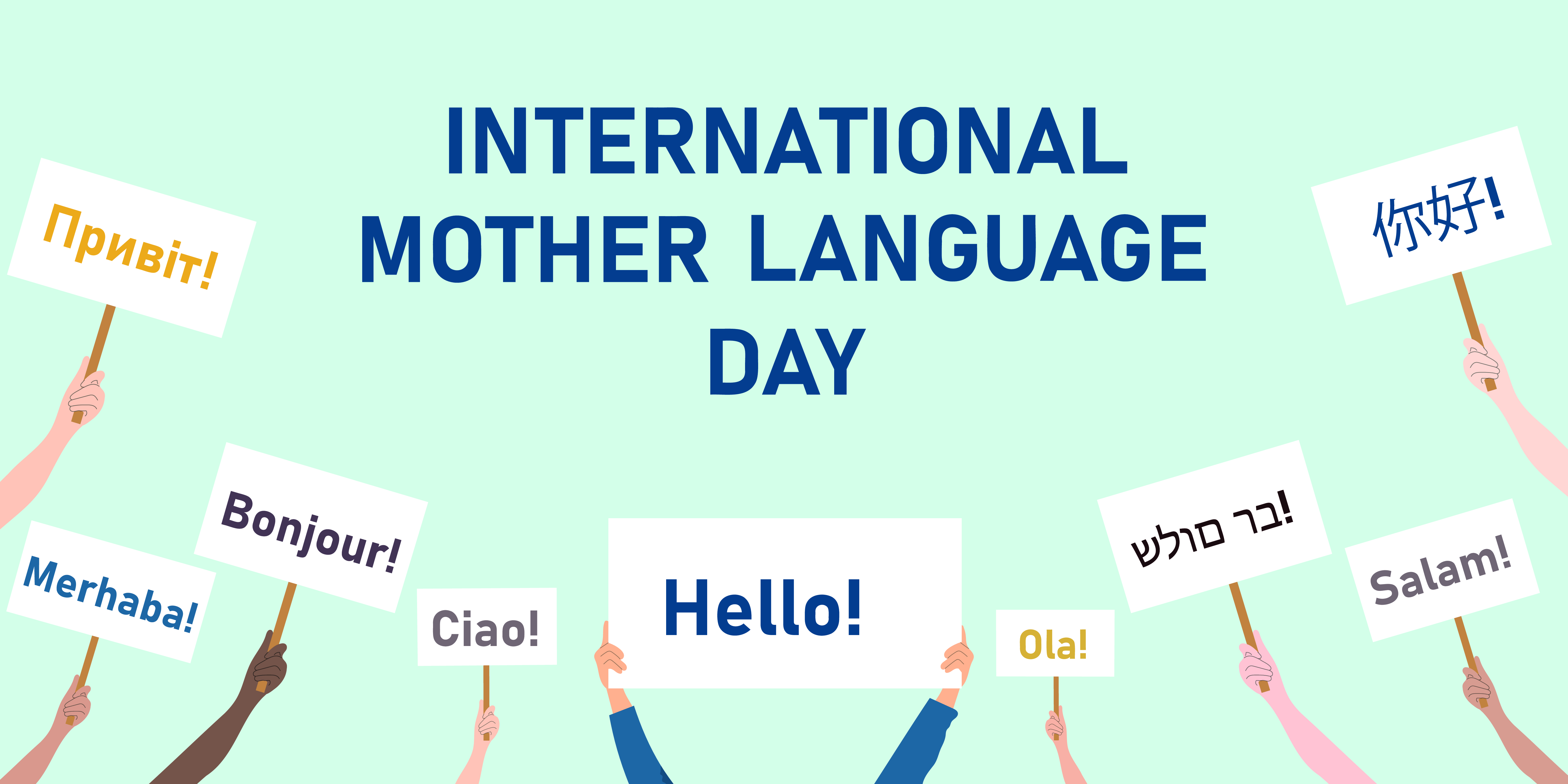
Recognize multiple languagesimageINTERNATIONALMOTHER LANGUAGEDAYПривет!你好!Bonjour!Merhaba!Ciao!Hello!Ola!בר מולדSalam!
Recognize skewed imagesimageProduct IntroductionImported fiber filaments from South Korea.6941990612023Item No.: 2023
Locate text positionimg_1
high-precision recognition task supports text localization.
Visualization of localizationimg_1_location
See the FAQ on how to draw the bounding box of each text line onto the original image.

Model selection

Qwen-OCR provides the following models. Choose based on your business requirements:
  • Qwen3.5-OCR: Built on the Qwen3.5 architecture, with comprehensive upgrades in document parsing, text localization, and key information extraction. Supports multi-turn conversations and PDF document parsing. Significantly improved in extracting information from business certificates (such as ID cards and driver's licenses). For supported certificate types, see Supported certificate and document types. Includes the qwen3.5-ocr model.
  • Qwen-VL-OCR: Built on the Qwen3-VL architecture. Supports built-in tasks including document parsing, text localization (high-precision recognition), information extraction, table parsing, formula recognition, general text recognition, and multilingual recognition. Also supports image rotation correction. Includes qwen-vl-ocr (stable), qwen-vl-ocr-latest (latest), qwen-vl-ocr-2025-11-20, and qwen-vl-ocr-2025-08-28 models.
  • Early versions (not recommended): These versions are inferior to newer models in both features and performance. We recommend migrating to qwen3.5-ocr. Includes qwen-vl-ocr-2025-04-13 and qwen-vl-ocr-2024-10-28 models.
qwen-vl-ocr, qwen-vl-ocr-2025-04-13, and qwen-vl-ocr-2025-08-28 models, the max_tokens parameter (maximum output length) defaults to 4096. To increase this value to a range of 4097 to 8192, contact your commercial manager and provide the following information: your Alibaba Cloud account ID, image type (such as document images, e-commerce images, or contracts), model name, estimated Queries Per Second (QPS) and total daily requests, and the percentage of requests where the model output length exceeds 4096 tokens.
Online experience: Visit Model Studio console, select the target region in the upper-right corner, and go to Vision Models to try Qwen-OCR models.

Preparations

  • Create an API key and set it as an environment variable.
  • If you use the OpenAI SDK or DashScope SDK, install the latest SDK version. Minimum versions: DashScope Python SDK 1.22.2, Java SDK 2.21.8.
    • DashScope SDK
      • Advantages: Full access to advanced features — image rotation correction, built-in OCR tasks — with a simple API.
      • Best for: Projects that need the complete feature set.
    • OpenAI-compatible SDK
      • Advantages: Drop-in replacement for existing OpenAI SDK integrations.
      • Limitations: Advanced features such as image rotation correction and built-in OCR tasks are not directly exposed as parameters. Simulate them by crafting prompts and parsing the output.
      • Best for: Projects already using OpenAI that don't need DashScope-exclusive features.

Getting started

The following example extracts structured fields from a train ticket image (URL) and returns the results as JSON. For local files, see how to pass a local file. For input constraints, see image limitations.
  • OpenAI compatible-Chat
  • OpenAI compatible-Response
  • DashScope
Python
from openai import OpenAI
import os

PROMPT_TICKET_EXTRACTION = """
Please extract the invoice number, train number, departure station, destination station, departure date and time, seat number, seat type, ticket price, ID card number, and passenger name from the train ticket image.
Extract the key information accurately. Do not omit information or fabricate false information. Replace any single character that is blurry or obscured by glare with a question mark (?).
Return the data in JSON format: {'Invoice Number': 'xxx', 'Train Number': 'xxx', 'Departure Station': 'xxx', 'Destination Station': 'xxx', 'Departure Date and Time': 'xxx', 'Seat Number': 'xxx', 'Seat Type': 'xxx', 'Ticket Price': 'xxx', 'ID Card Number': 'xxx', 'Passenger Name': 'xxx'}
"""

try:
    client = OpenAI(
        # API keys are region-specific. To get an API key, see https://www.alibabacloud.com/help/en/model-studio/get-api-key
        # If you have not configured an environment variable, replace the following line with your Model Studio API key: api_key="sk-xxx",
        api_key=os.getenv("DASHSCOPE_API_KEY"),
        # Replace {WorkspaceId} with your workspace ID. URLs vary by region.
        base_url="https://{WorkspaceId}.ap-southeast-1.maas.aliyuncs.com/compatible-mode/v1",
    )
    completion = client.chat.completions.create(
        model="qwen-vl-ocr-2025-11-20",
        messages=[
            {
                "role": "user",
                "content": [
                    {
                        "type": "image_url",
                        "image_url": {"url":"https://img.alicdn.com/imgextra/i2/O1CN01ktT8451iQutqReELT_!!6000000004408-0-tps-689-487.jpg"},
                        # The minimum pixel threshold for the input image. If the image is smaller than this value, it is scaled up until the total pixels exceed min_pixels.
                        "min_pixels": 32 * 32 * 3,
                        # The maximum pixel threshold for the input image. If the image is larger than this value, it is scaled down until the total pixels are below max_pixels.
                        "max_pixels": 32 * 32 * 8192
                    },
                    # The model supports passing a prompt in the text field. If no prompt is passed, the default prompt is used: Please output only the text content from the image without any additional descriptions or formatting.
                    {"type": "text",
                     "text": PROMPT_TICKET_EXTRACTION}
                ]
            }
        ])
    print(completion.choices[0].message.content)
except Exception as e:
    print(f"Error message: {e}")
{
  "choices": [{
    "message": {
      "content": "```json\n{\n    \"Invoice Number\": \"24329116804000\",\n    \"Train Number\": \"G1948\",\n    \"Departure Station\": \"Nanjing South Station\",\n    \"Destination Station\": \"Zhengzhou East Station\",\n    \"Departure Date and Time\": \"2024-11-14 11:46\",\n    \"Seat Number\": \"Car 04, Seat 12A\",\n    \"Seat Type\": \"Second Class\",\n    \"Ticket Price\": \"¥337.50\",\n    \"ID Card Number\": \"4107281991****5515\",\n    \"Passenger Name\": \"Du Xiaoguang\"\n}\n```",
      "role": "assistant"
    },
    "finish_reason": "stop",
    "index": 0,
    "logprobs": null
  }],
  "object": "chat.completion",
  "usage": {
    "prompt_tokens": 606,
    "completion_tokens": 159,
    "total_tokens": 765
  },
  "created": 1742528311,
  "system_fingerprint": null,
  "model": "qwen-vl-ocr-latest",
  "id": "chatcmpl-20e5d9ed-e8a3-947d-bebb-c47ef1378598"
}

Call built-in tasks

Models (except qwen-vl-ocr-2024-10-28) ship with built-in tasks for common OCR scenarios. How to call a built-in task:
  • DashScope SDK: Set the ocr_options parameter to call built-in tasks. Starting from qwen3.5-ocr, built-in tasks work together with your custom Prompt (no longer overriding it), and built-in task results are returned in the ocr_result field. Earlier models use a fixed internal Prompt.
  • OpenAI-compatible SDK: Pass the task-specific Prompt manually in your message.
Each task has a task value, a fixed Prompt, an output format, and an example output:
  • High-precision recognition
  • Information extraction
  • Table parsing
  • Document parsing
  • Formula recognition
  • General text recognition
  • Multilingual recognition
For high-precision recognition, use model versions later than qwen-vl-ocr-2025-08-28 or the latest version (recommended). Features:
  • Recognizes and extracts text content.
  • Detects the position of text by locating text lines and outputting their coordinates.
To draw bounding boxes on the original image using the returned coordinates, see the FAQ .
Value of taskSpecified promptOutput format and example
advanced_recognitionLocate all text lines and return the coordinates of the rotated rectangle ([cx, cy, width, height, angle]).
  • Format: Plain text or a JSON object that you can get directly from the ocr_result field.
  • Example:

{
  "output": {
    "choices": [
      {
        "message": {
          "content": [
            {
              "ocr_result": {
                "words_info": [
                  {
                    "location": [331, 139, 465, 139, 465, 166, 331, 166],
                    "rotate_rect": [398,153,134,27,90],
                    "text": "Magsafe"
                  },
                  {
                    "location": [411, 86, 411, 220, 384, 220, 384, 86],
                    "rotate_rect": [680,250,40,167,90],
                    "text": "金盾系列"
                  },
  • text: The text content of each line.
  • location:
    • Example value: [x1, y1, x2, y2, x3, y3, x4, y4]
    • Meaning: The absolute coordinates of the four vertices of the text box. The top-left corner of the original image is the origin (0,0). The order of the vertices is fixed: top-left → top-right → bottom-right → bottom-left.
  • rotate_rect:
    • Example value: [center_x, center_y, width, height, angle]
    • Meaning: Another representation of the text box, where center_x and center_y are the coordinates of the text box centroid, width is the width, height is the height, and angle is the rotation angle of the text box relative to the horizontal direction. The value is in the range of [-90, 90].
import os
import dashscope

# Replace {WorkspaceId} with your workspace ID. URLs vary by region.
# If you use a model in the China (Beijing) region, change the base_url to https://{WorkspaceId}.cn-beijing.maas.aliyuncs.com/api/v1.
dashscope.base_http_api_url = 'https://{WorkspaceId}.ap-southeast-1.maas.aliyuncs.com/api/v1'

messages = [{
            "role": "user",
            "content": [{
                "image": "https://help-static-aliyun-doc.aliyuncs.com/file-manage-files/zh-CN/20241108/ctdzex/biaozhun.jpg",
                # The minimum pixel threshold for the input image. If the image is smaller than this value, it is scaled up until the total pixels are greater than min_pixels.
                "min_pixels": 32 * 32 * 3,
                # The maximum pixel threshold for the input image. If the image is larger than this value, it is scaled down until the total pixels are less than max_pixels.
                "max_pixels": 32 * 32 * 8192,
                # Specifies whether to enable automatic image rotation.
                "enable_rotate": False}]
            }]

response = dashscope.MultiModalConversation.call(
    # If you have not configured an environment variable, replace the following line with your Model Studio API key: api_key="sk-xxx",
    api_key=os.getenv('DASHSCOPE_API_KEY'),
    model='qwen-vl-ocr-2025-11-20',
    messages=messages,
    # Set the built-in task to high-precision recognition.
    ocr_options={"task": "advanced_recognition"}
)
# The high-precision recognition task returns the result as plain text.
print(response["output"]["choices"][0]["message"].content[0]["text"])
{
  "output":{
    "choices":[
      {
        "finish_reason":"stop",
        "message":{
          "role":"assistant",
          "content":[
            {
              "text":"```json\n[{\"pos_list\": [{\"rotate_rect\": [740, 374, 599, 1459, 90]}]}```",
              "ocr_result":{
                "words_info":[
                  {
                    "rotate_rect":[150,80,49,197,-89],
                    "location":[52,54,250,57,249,106,52,103],
                    "text":"Audience"
                  },
                  {
                    "rotate_rect":[724,171,34,1346,-89],
                    "location":[51,146,1397,159,1397,194,51,181],
                    "text":"If you are a system administrator in a Linux environment, learning to write shell scripts will be very beneficial. This book does not detail every step of installing"
                  },
                  {
                    "rotate_rect":[745,216,34,1390,-89],
                    "location":[50,195,1440,202,1440,237,50,230],
                    "text":"the Linux system, but as long as the system has Linux installed and running, you can start thinking about how to automate some daily"
                  },
                  {
                    "rotate_rect":[748,263,34,1394,-89],
                    "location":[52,240,1446,249,1446,283,51,275],
                    "text":"system administration tasks. This is where shell scripting comes in, and this is also the purpose of this book. This book will"
                  },
                  {
                    "rotate_rect":[749,308,34,1395,-89],
                    "location":[51,285,1446,296,1446,331,51,319],
                    "text":"demonstrate how to use shell scripts to automate system administration tasks, from monitoring system statistics and data files to for your boss"
                  },
                  {
                    "rotate_rect":[123,354,33,146,-89],
                    "location":[50,337,197,338,197,372,50,370],
                    "text":"generating reports."
                  },
                  {
                    "rotate_rect":[751,432,34,1402,-89],
                    "location":[51,407,1453,420,1453,454,51,441],
                    "text":"If you are a home Linux enthusiast, you can also benefit from this book. Nowadays, users can easily get lost in a graphical environment built from many stacked components."
                  },
                  {
                    "rotate_rect":[755,477,31,1404,-89],
                    "location":[54,458,1458,463,1458,495,54,490],
                    "text":"Most desktop Linux distributions try to hide the internal details of the system from general users. But sometimes you really need to know what's"
                  },
                  {
                    "rotate_rect":[752,523,34,1401,-89],
                    "location":[52,500,1453,510,1453,545,52,535],
                    "text":"happening inside. This book will show you how to start the Linux command line and what to do next. Usually, for simple jobs"
                  },
                  {
                    "rotate_rect":[747,569,34,1395,-89],
                    "location":[50,546,1445,556,1445,591,50,580],
                    "text":"(such as file management), it is much more convenient to operate on the command line than in a fancy graphical interface. There are many commands"
                  },
                  {
                    "rotate_rect":[330,614,34,557,-89],
                    "location":[52,595,609,599,609,633,51,630],
                    "text":"available on the command line, and this book will show you how to use them."
                  }
                ]
              }
            }
          ]
        }
      }
    ]
  },
  "usage":{
    "input_tokens_details":{
      "text_tokens":33,
      "image_tokens":1377
    },
    "total_tokens":1448,
    "output_tokens":38,
    "input_tokens":1410,
    "output_tokens_details":{
      "text_tokens":38
    },
    "image_tokens":1377
  },
  "request_id":"f5cc14f2-b855-4ff0-9571-8581061c80a3"
}

PDF document parsing

qwen3.5-ocr supports passing PDF files directly through the Response API for document parsing, without manually splitting the PDF into images. The output length is not limited by the model's maximum output length, enabling complete parsing of long documents. Only the Response API is supported; the Chat API is not supported. PDF file limits: up to 10 pages and no more than 100 MB. The following examples use the Response API to pass PDF files for document parsing.
Python
import os
from openai import OpenAI

client = OpenAI(
    # If you have not configured an environment variable, replace the following line with your API key: api_key="sk-xxx"
    api_key=os.getenv("DASHSCOPE_API_KEY"),
    # The URL below is for the China (Beijing) region. Replace {WorkspaceId} with your actual workspace ID. URLs vary by region.
    base_url="https://{WorkspaceId}.cn-beijing.maas.aliyuncs.com/compatible-mode/v1",
)

response = client.responses.create(
    model="qwen3.5-ocr",
    input=[{
        "role": "user",
        "content": [{
            "type": "input_file",
            "file_url": "https://help-static-aliyun-doc.aliyuncs.com/file-manage-files/zh-CN/20260616/qmycjl/1506.02640v5.pdf"
        }]
    }],
    extra_body={
        "ocr_options": {"task": "document_parsing"}
    }
)

# Get the built-in task result
print(response.output[0].content[0].ocr_result)
For earlier models (qwen-vl-ocr-2025-11-20 and before) that do not support the Response API, use an image processing library such as Python's pdf2image to convert each PDF page to an image, and then use the multi-image input method for page-by-page recognition.
For more usages of the OpenAI Responses API (such as retrieving and managing completed model responses), see OpenAI compatible - Responses.

Pass a local file (Base64 encoding or file path)

Upload local files using Base64 encoding or a direct file path. Select the method based on file size and SDK type — see How to select a file upload method. Both methods must meet the file requirements in Image limits.
  • Use Base64 encoding
  • Use file path
Convert the file to a Base64-encoded string, and then pass it to the model. This method is suitable for OpenAI and DashScope SDKs, and HTTP requests.
  1. Encode the file: Convert the local image to a Base64-encoded string.
    # Encoding function: Converts a local file to a Base64-encoded string.
    def encode_image(image_path):
        with open(image_path, "rb") as image_file:
            return base64.b64encode(image_file.read()).decode("utf-8")
    
    # Replace xxx/eagle.png with the absolute path of your local image.
    base64_image = encode_image("xxx/eagle.png")
    
  2. Construct a Data URL in the following format: data:[MIME_type];base64,{base64_image}.
    1. Replace MIME_type with the actual media type. Make sure that the type matches the MIME Type value in the Image limits table, such as image/jpeg or image/png.
    2. base64_image is the Base64-encoded string generated in the previous step.
  3. Call the model: Pass the Data URL using the image or image_url parameter to call the model.
  • Pass a file path
  • Pass a Base64-encoded string
Passing a file path is supported only for calls made with the DashScope Python and Java SDKs. This method is not supported for DashScope HTTP or OpenAI-compatible methods.
Python
import os
import dashscope

# Replace {WorkspaceId} with your workspace ID. URLs vary by region.
dashscope.base_http_api_url = 'https://{WorkspaceId}.ap-southeast-1.maas.aliyuncs.com/api/v1'

# Replace xxx/test.jpg with the absolute path of your local image.
local_path = "xxx/test.jpg"
image_path = f"file://{local_path}"
messages = [
    {
        "role": "user",
        "content": [
            {
                "image": image_path,
                # The minimum pixel threshold for the input image. If the image has fewer pixels than this value, the image is scaled up until the total number of pixels is greater than min_pixels.
                "min_pixels": 32 * 32 * 3,
                # The maximum pixel threshold for the input image. If the image has more pixels than this value, the image is scaled down until the total number of pixels is less than max_pixels.
                "max_pixels": 32 * 32 * 8192,
            },
            # If no built-in task is set for the model, you can pass a prompt in the text field. If you do not pass a prompt, the default prompt is used: Please output only the text content from the image without any additional descriptions or formatting.
            {
                "text": "Extract the invoice number, train number, departure station, destination station, departure date and time, seat number, seat type, ticket price, ID card number, and passenger name from the train ticket image. Extract the key information accurately. Do not omit or fabricate information. Replace any single character that is blurry or obscured by glare with a question mark (?). Return the data in JSON format: {'invoice_number': 'xxx', 'train_number': 'xxx', 'departure_station': 'xxx', 'destination_station': 'xxx', 'departure_date_and_time': 'xxx', 'seat_number': 'xxx', 'seat_type': 'xxx', 'ticket_price': 'xxx', 'id_card_number': 'xxx', 'passenger_name': 'xxx'}"
            },
        ],
    }
]

response = dashscope.MultiModalConversation.call(
    # API keys vary by region. To obtain an API key, see https://www.alibabacloud.com/help/en/model-studio/get-api-key.
    # If you have not configured an environment variable, replace the following line with your Model Studio API key: api_key="sk-xxx"
    api_key=os.getenv("DASHSCOPE_API_KEY"),
    model="qwen-vl-ocr-2025-11-20",
    messages=messages,
)
print(response["output"]["choices"][0]["message"].content[0]["text"])

More usages

Limitations

Image limits

  • Dimensions and aspect ratio: The image width and height must both be greater than 10 pixels. The aspect ratio must not exceed 200:1 or 1:200.
  • Total pixels: The model automatically scales images, so there is no strict limit on the total number of pixels. However, an image cannot exceed 15.68 million pixels.
  • Supported image formats
    • For images with a resolution below 4K (3840x2160), the following formats are supported:

      Image format

      Common extensions

      MIME type

      BMP

      .bmp

      image/bmp

      JPEG

      .jpe, .jpeg, .jpg

      image/jpeg

      PNG

      .png

      image/png

      TIFF

      .tif, .tiff

      image/tiff

      WEBP

      .webp

      image/webp

      HEIC

      .heic

      image/heic

    • For images with a resolution from 4K(3840x2160) to 8K(7680x4320), only the JPEG, JPG, and PNG formats are supported.
  • Image size:
    • If you provide an image using a public URL or a local path: qwen3.5-ocr supports images up to 20 MB; other versions support up to 10 MB.
    • If you provide the data in Base64 encoding, the encoded string cannot exceed 10 MB.
    See also: How do I compress an image or video to the required size? .

Model limits

  • System message: Qwen-OCR uses a fixed internal System Message and does not accept a custom one. Pass all instructions in the User Message.
  • Multi-turn conversations: Starting from qwen3.5-ocr, multi-turn conversations are supported — you can send follow-up text messages without an image URL. qwen-vl-ocr-2025-11-20 and earlier versions process only the most recent message and do not retain context.
  • Hallucination risk: The model may hallucinate if text in an image is too small or has a low resolution. Additionally, the accuracy of answers to questions not related to text extraction is not guaranteed.
  • Error processing text files:
    • For files that contain image data, follow the recommendations in Going live to transform them into an image sequence before processing.
    • For files with plain text or structured data, use Qwen-Long, a model that can parse long text.

Supported certificate and document types

The information extraction task supports structured data extraction from the following certificates, receipts, and permits.
  • Passports and travel documents: Chinese passport, Macau passport, Mainland Travel Permit for Hong Kong and Macau Residents, Mainland Travel Permit for Taiwan Residents, and Home Return Permit for Hong Kong and Macau Residents.
  • Vehicle documents and sales invoices: driver's license, vehicle nameplate, vehicle certificate of conformity, vehicle registration certificate, motor vehicle sales invoice, and used vehicle sales invoice.
  • Invoices and tax receipts: VAT ordinary invoice (roll), fixed-amount special invoice, general machine-printed invoice, tax payment certificate, and central non-tax revenue receipt.
  • Transportation receipts: 12306 high-speed rail ticket, train ticket, boat ticket, expressway toll receipt, and expressway machine-printed invoice.
  • Financial cards and receipts: credit card, electronic bank acceptance bill, payment receipt, and social security card.
  • Business licenses and permits: business license, food business license, food production license, pharmaceutical business license, and medical device business license.
  • Real estate certificate: real estate ownership certificate.
  • International ID cards: Hong Kong ID, Macau ID, Indonesian ID, Thai ID, Vietnamese ID, Malaysian ID, Philippine ID, Indian ID, Turkish ID, Pakistani ID, Mexican ID, UK ID, and US ID.
  • International passports and driver's licenses: Indian passport, Singapore passport, Thai passport, US passport, Australian passport, UAE passport, Philippine driver's license, Japanese driver's license, and US driver's license.

Billing and rate limiting

  • Billing: Qwen-OCR is a multimodal model. The total cost is calculated as follows: (Number of input tokens × Unit price for input) + (Number of output tokens × Unit price for output). View bills or top up your account in the Expenses and Costs console.
    • Calculating image tokens: Use the following code to estimate image token usage. Actual billing is based on the API response.
      Formula: Image tokens = (h_bar * w_bar) / token_pixels + 2.
      • h_bar * w_bar represents the dimensions of the scaled image. The model pre-processes the image by scaling it to a specific pixel limit. This limit depends on the value of the max_pixels parameter.
      • token_pixels represents the pixel value per Token.
        • For qwen3.5-ocr, qwen-vl-ocr, qwen-vl-ocr-2025-11-20, and qwen-vl-ocr-latest, this value is fixed at 32*32 (which is 1024).
        • For other models, this value is fixed at 28*28 (which is 784).
      This code demonstrates the approximate image scaling logic the model uses. Use it to estimate token count for an image. Actual billing is based on the API response.
      import math
      from PIL import Image
      
      def smart_resize(image_path, min_pixels, max_pixels):
          """
          Pre-process an image.
      
          Parameters:
              image_path: The path to the image.
          """
          # Open the specified PNG image file.
          image = Image.open(image_path)
      
          # Get the original dimensions of the image.
          height = image.height
          width = image.width
          # Adjust the height to be a multiple of 28 or 32.
          h_bar = round(height / 32) * 32
          # Adjust the width to be a multiple of 28 or 32.
          w_bar = round(width / 32) * 32
      
          # Scale the image to adjust the total number of pixels to be within the range [min_pixels, max_pixels].
          if h_bar * w_bar > max_pixels:
              beta = math.sqrt((height * width) / max_pixels)
              h_bar = math.floor(height / beta / 32) * 32
              w_bar = math.floor(width / beta / 32) * 32
          elif h_bar * w_bar < min_pixels:
              beta = math.sqrt(min_pixels / (height * width))
              h_bar = math.ceil(height * beta / 32) * 32
              w_bar = math.ceil(width * beta / 32) * 32
          return h_bar, w_bar
      
      # Replace xxx/test.png with the path to your local image.
      h_bar, w_bar = smart_resize("xxx/test.png", min_pixels=32 * 32 * 3, max_pixels=8192 * 32 * 32)
      print(f"The scaled image dimensions are: height {h_bar}, width {w_bar}")
      
      # Calculate the number of image tokens: total pixels divided by 32 * 32.
      token = int((h_bar * w_bar) / (32 * 32))
      
      # <|vision_bos|> and <|vision_eos|> are visual markers. Each is counted as 1 token.
      print(f"Total number of image tokens: {token + 2}")
      
  • Rate limiting: For the rate limits for Qwen-OCR, see Rate limiting.
  • Free quota (Singapore only): Qwen-OCR provides a free quota of 1 million tokens. This quota is valid for 90 days, starting from the date you activate Model Studio or your request to use the model is approved.

Going live

  • Image pre-processing:
    • Ensure that input images are clear, evenly lit, and not overly compressed:
      • Store and transmit images in a lossless format (e.g., PNG) to avoid information loss.
      • To improve image definition, use denoising algorithms, such as mean or median filtering, to smooth noisy images.
      • To correct uneven lighting, use algorithms such as adaptive histogram equalization to adjust brightness and contrast.
    • Skewed images: Set enable_rotate: true in the DashScope SDK to correct rotation before recognition.
    • Very small or very large images: Use min_pixels and max_pixels to control image scaling.
      • min_pixels: Enlarges small images to improve detail. Keep the default.
      • max_pixels: Prevents oversized images from consuming too many tokens. The default handles most cases. Increase it when small text is missed — this raises token usage.
  • Result validation: The model's recognition results may contain errors. For critical business operations, implement a manual review process or add validation rules to verify the accuracy of the model's output. For example, use format validation for ID card and bank card numbers.
  • Batch processing: For high-volume, non-real-time workloads, use the Batch API to process jobs asynchronously at lower cost.

FAQ

Choose the best upload method based on the SDK type, file size, and network stability.

Type

Specifications

DashScope SDK (Python, Java)

OpenAI compatible / DashScope HTTP

Image

Greater than 7 MB and less than 10 MB

Pass the local path

Only public URLs are supported. Use Object Storage Service.

Less than 7 MB

Pass the local path

Base64 encoding

Base64 encoding increases the data size. The original file size must be less than 7 MB.
Using a local path or Base64 encoding helps prevent server-side download timeouts and improves stability.
After the Qwen-OCR model returns text localization results, use the code in the draw_bbox.py file to draw detection frames and their labels on the original image.
When you use qwen3.5-ocr, if your custom Prompt contains a complete HTML structure, such as <html><body>...</body></html>, the model may follow that structure and return the OCR result in HTML format instead of plain text. The response then looks empty or appears to contain frontend-style tags. A simple tag, such as a single <br>, does not trigger this behavior.To resolve this issue, use one of the following methods:
  • Check whether your Prompt contains a complete HTML tag structure. If it does, replace it with a plain text instruction and try again. For example, change <html><body>Extract all text from the image</body></html> to Extract all text from the image.
  • If you are unsure whether your Prompt affects the output format, omit the text field to use the default Prompt of the model.
  • Use the qwen3.7-plus model instead. This model returns a plain text result even when you pass the same Prompt that contains an HTML structure.

API reference

For the input and output parameters of Qwen-OCR, see Qwen-OCR API reference.

Error codes

If the model call fails and returns an error message, see Error codes for resolution.
Token Plan
Model Playground
Statistics and Monitoring
Support