

Build voice assistants and customer service apps that can talk and use tools at the same time.
The Qwen-Audio-Live frontend model listens, asks questions, and responds in speech. When a request needs a business API or more reasoning, the frontend can delegate the task and keep talking with the user.
During an order lookup, the frontend model can take an order number from the user and share progress or results in speech. In Client mode, your application handles the task and returns the result. In Responses mode, Model Studio calls the configured backend model and returns its result to the frontend.
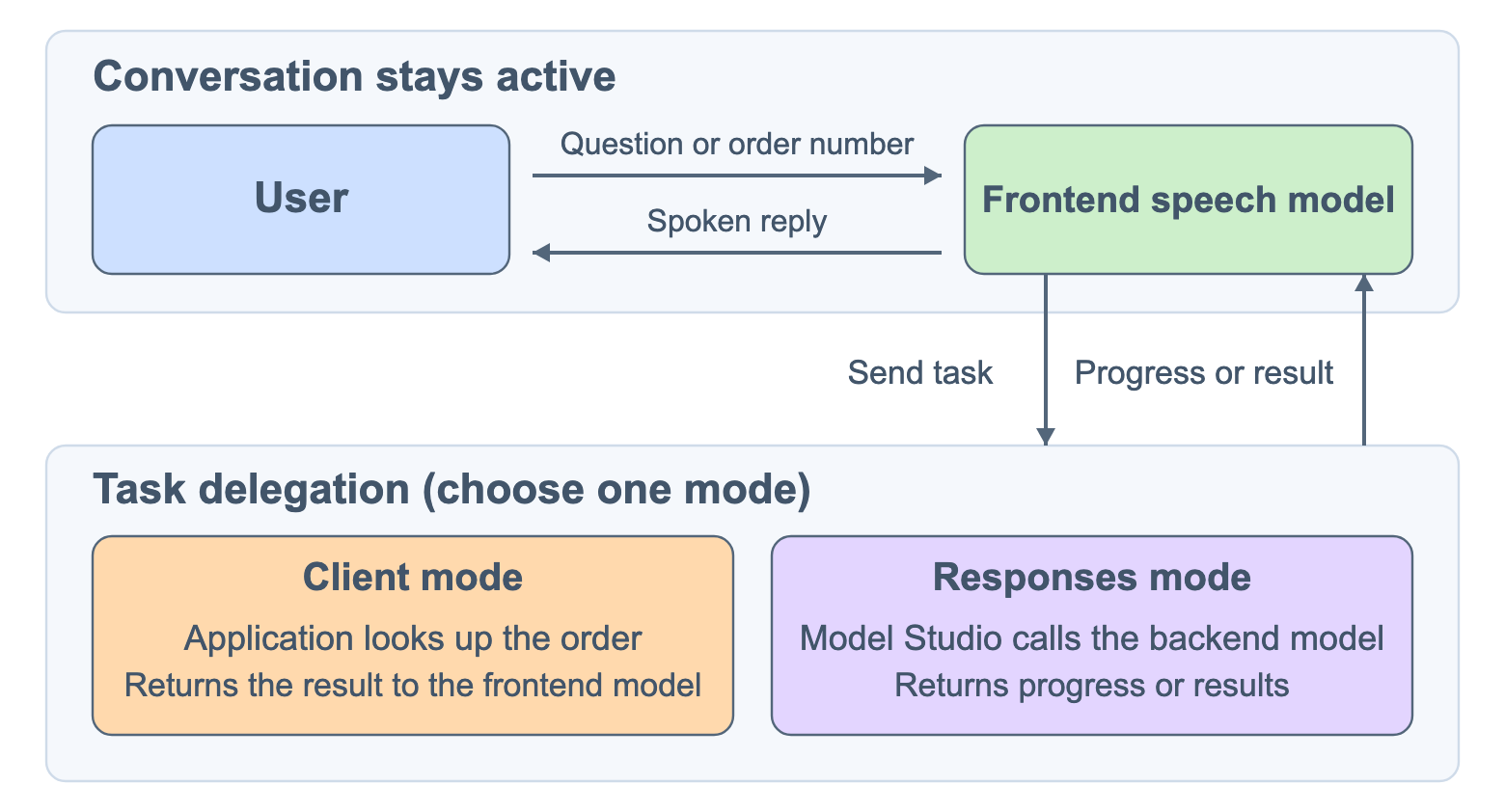 For session configuration, audio transmission/reception, and usage query, see Manage sessions. For integration with business systems or backend models, see Task delegation and tools.
This example sends a recorded audio clip to the model via WebSocket and saves the voice response to
Qwen-Audio-Live supports only workspace-specific domains. The following example uses Singapore. Enter the Workspace ID for this region in your code.
The example already includes two model parameters. In the connection URL, select
The terminal displays response captions. Open
Both setups start with a WebSocket connection. Choose a setup based on how you want to send and receive audio.
Use
Define task steps, input checks, and result formats where the task runs. In Client mode, put those rules in your application or agent. In Responses mode, use
In this Responses mode example, the frontend asks for missing inputs and the backend calculates the total.
A session stores the frontend model, voice, audio transmission method, and task processing mode used during user conversations.
After sending
Set the voice ID in the
In the example,
The method of sending and receiving audio depends on the protocol selected during connection establishment.
Full-duplex conversations use
In addition to voice, users can supplement information with text during a call—for example, typing a product name to look up. The application sends this text as a user message to the model via
A single session has no time limit. Qwen-Audio-Live charges per second of session duration. Once the connection is established, each session is billed for at least 3 seconds. Text messages, mute periods, and idle time are all billed under session duration. When Model Studio invokes the backend model, billing is separate and based on the actual token usage of that model.
When the user hangs up or clicks End, send
The examples in this section use the WebSocket-only connection from Quickstart. With WebRTC or AOQ, use the control WebSocket to configure the session and send task requests. Send and receive audio over the media connection.
When a user makes a request during a conversation, the frontend model can call a function directly or delegate the task to the backend. Choose where to configure each tool based on the steps involved and how quickly the user needs a response.
Choose Responses mode if you want Model Studio to call a backend model and pass its result to the frontend model. Choose Client mode if you already have a business API, workflow, or agent, or if your application needs to verify the result before deciding what the user hears.
Set
For example, use Responses mode to calculate a total from a unit price and quantity. Use Client mode to look up stock in an internal system when your application needs to check store permissions and verify the result.
Both modes can configure frontend functions. A frontend function uses
Choose a backend Responses model your workspace can call. This example uses
Save the original script from Quickstart as
When automatic delegation starts, the service sends
Record the phrase 'Each item costs 327 yuan; how much for thirteen items?' and save it as
Confirm that the terminal logs both task dispatch and backend generation completion, then open
Declare tools for the backend model in
If your application already has the input, send
Run
Use the fixed result below to test task feedback and spoken playback. When connecting to a real inventory API, make sure your application can call it, map the product name to the ID the API expects, and include the product name in the result.
Save the original script from Quickstart as
When you receive
Include the current task's
Run slow business calls in a background task so the main loop can continue handling audio and events. Verify the result and return the facts the frontend model needs to speak.
In the audio reception loop from Quickstart, add the following two branches immediately after the
Record “Please check whether black folding umbrellas are in stock,” and save it as
Confirm that the terminal logs show task dispatch and result acknowledgment, then open
When requiring the frontend model to supply function parameters in a fixed structure, declare the function in
If your application already uses Qwen-Audio-Realtime, retain your existing business interfaces and tool implementations. First validate audio send/receive functionality with Quickstart for Qwen-Audio-Live, then migrate event handling and task logic.

Quickstart
- Test with a recording. Run the Python example on this page and check the captions and audio returned by the model.
- Talk to the model using your microphone. Run the WebRTC browser example to hear model responses directly.
Establish your first session
This example sends a recorded audio clip to the model via WebSocket and saves the voice response to reply.wav.
Prepare the audio recording and credentials
- Obtain your Singapore Workspace ID and API Key. Store long-term API Keys securely on your application server.
- Install Python and FFmpeg. Record the phrase 'Please count from one to three' and save it as
input.wav.
DASHSCOPE_API_KEY. Install dependencies and convert the recording into PCM audio at 16 kHz, 16-bit, mono.
Send the recording and receive the response
Qwen-Audio-Live supports only workspace-specific domains. The following example uses Singapore. Enter the Workspace ID for this region in your code.
The example already includes two model parameters. In the connection URL, select model as Qwen-Audio-Live service, and session.model as the voice model (frontend model) that converses with users. This example uses the duplex-capable qwen-audio-4.0-realtime-preview; full configuration details are available in session.update.
Save the following example as live_quickstart.py.
reply.wav to confirm you can hear the model counting. The file format is WAV, 24 kHz, 16-bit, mono.
If no response is received, first verify that the API Key, Workspace ID, and connection URL all belong to the same region. Audio transmission begins only after receiving session.updated. For troubleshooting audio, captions, and errors, see Troubleshoot integration issues.
Choose how to connect
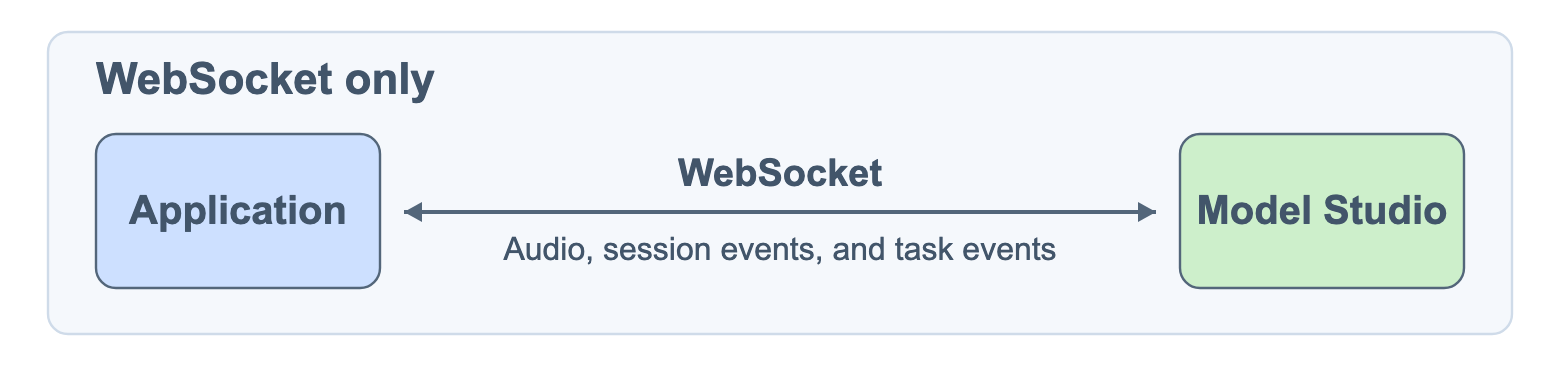
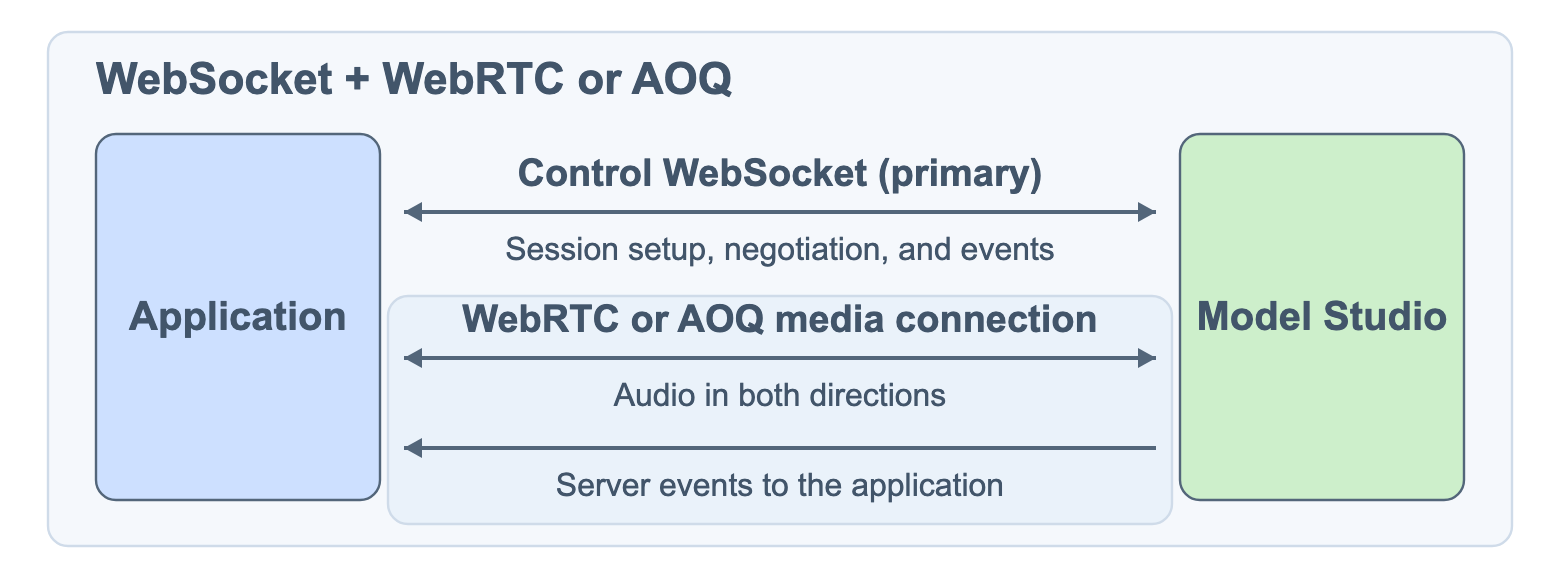
Both setups start with a WebSocket connection. Choose a setup based on how you want to send and receive audio.
-
WebSocket only. One connection carries audio, transcripts, and task events. Use it to test with a recording or to stream audio from a server.
-
WebSocket + WebRTC or AOQ. Keep the control WebSocket open to configure the session, set up the media connection, and send task requests. Once the media connection is ready, use it to send and receive audio. Receive server events over either connection.
Write prompts
Write the frontend conversation prompt
Use session.instructions to define the frontend role, tone, when to ask for missing information, when to delegate, and how to present the result.
If you omit session.instructions in the initial session configuration, the frontend model uses its built-in instructions. Providing session.instructions replaces them. Include all the conversation rules you need in your custom instructions.
To make the customer service agent first give a brief answer and then ask whether the user needs further assistance, add the following field to the session object in session.update while retaining existing settings such as model and delegation.
Define task instructions
Define task steps, input checks, and result formats where the task runs. In Client mode, put those rules in your application or agent. In Responses mode, use session.delegation.responses.instructions. Model Studio supplies no built-in backend instructions.
Split the prompts for a calculation
In this Responses mode example, the frontend asks for missing inputs and the backend calculates the total.
- Frontend prompt. Ask for the unit price or quantity if either is missing. When you have both, delegate the calculation to the backend model. Read the result aloud in one sentence.
- Backend prompt. Calculate the total from the unit price and quantity. Return the amount and currency.
Manage sessions
A session stores the frontend model, voice, audio transmission method, and task processing mode used during user conversations.
Configure a session
| Settings | Configure location and purpose |
|---|---|
| Frontend model | Select a speech model in session.model. For duplex conversations, use qwen-audio-4.0-realtime-preview and set session.turn_detection.type to duplex. |
| Conversation instructions and voice | Set instructions and voice. See Write prompts and Set the voice. |
| Output types | When modalities includes both text and audio, the service returns both speech and subtitles. |
| Audio transmission method | Selected via session.transport. If omitted, WebSocket is used. Media connections for WebRTC and AOQ are established according to their respective onboarding procedures. |
| Task processing mode | Configured via session.delegation. See Task Delegation and Tools. |
session.update, view the effective configuration from session.updated. With pure WebSocket integration, audio can be sent immediately. When using WebRTC or AOQ, wait until the media connection is ready before sending audio.
Set the voice
Set the voice ID in the session object in session.update and keep your other session settings.
qingyou corresponds to 'Qing You', and the default value is yunshu ('Yun Shu'). The full list is available in Client Events.
Send and receive speech and subtitles
The method of sending and receiving audio depends on the protocol selected during connection establishment.
- WebRTC sends and receives audio via media tracks. Browsers deliver remote audio tracks to the player.
- AOQ sends and receives audio via the SDK. Uplink audio must be sent through AOQ. After setting
session.transport.aoq.ws_audiototrue, the WebSocket control channel also receives a copy of downlink audio. See AOQ access for details. - WebSocket transmits audio via JSON events. Both input and output use mono PCM, but with different sampling rates.
| Data | Event | Processing method |
|---|---|---|
| Microphone audio or recording | Send session.input_audio.append | Chunk and encode the PCM audio (16 kHz, 16-bit, mono) into Base64. For quick start, use 20-ms frames. |
| Model audio response | Receive session.output_audio.delta | Decode the delta in the event and play the 24 kHz, 16-bit, mono PCM audio in arrival order. |
| Subtitles | Receive session.input_transcript.delta and session.output_transcript.delta | The former is the transcription of the user’s speech; the latter is the subtitle for the model’s response. Append each to its respective chat bubble. |
turn_detection.type=duplex. The application reads server-sent events while simultaneously sending audio.
Once the WebRTC or AOQ media connection is ready, receive subtitles over either the control WebSocket or the media connection. If both deliver a subtitle event with the same event_id, append it once. Use the player’s playback state to update the speaking indicator.
If the UI includes a microphone toggle, send session.input_audio.mute or session.input_audio.unmute; update the UI state upon receiving the corresponding confirmation. The session remains connected even when muted.
Send text messages
In addition to voice, users can supplement information with text during a call—for example, typing a product name to look up. The application sends this text as a user message to the model via session.item.create.
End a session and view usage
A single session has no time limit. Qwen-Audio-Live charges per second of session duration. Once the connection is established, each session is billed for at least 3 seconds. Text messages, mute periods, and idle time are all billed under session duration. When Model Studio invokes the backend model, billing is separate and based on the actual token usage of that model.
When the user hangs up or clicks End, send session.close and stop capturing microphone audio. After receiving session.closed, close the connection and release resources.
After a session activates, the service reports usage.seconds every 5 seconds over session.usage.updated, indicating the cumulative billed session duration (in seconds). During the session, use the latest reported value; after session termination, the final billed duration is the usage.seconds value in session.closed. Pricing and backend model billing details are available in the Billing Documentation.
Troubleshooting integration issues
| Symptom | Troubleshooting method |
|---|---|
| No response after uploading audio | First confirm receipt of session.updated. For pure WebSocket integration, verify that the upstream audio is mono PCM at 16 kHz and 16 bits. For WebRTC or AOQ integrations, ensure the media connection is ready and audio is being sent over it. |
| Subtitles received but no audio response heard | For pure WebSocket integration, verify receipt of session.output_audio.delta and playback at 24 kHz. For WebRTC or AOQ integrations, verify the player is receiving downstream audio on the selected channel. |
| Task processed but no voice announcement heard | Verify whether the application receives and plays the frontend model’s voice. In Client mode, confirm the returned delegation_id matches the task. |
Receive error or session.closed | Upon receiving error, refer to the Error Events for request diagnostics. After session closure, reestablish the connection and reconfigure the session to continue the conversation. |
Task delegation and tools
The examples in this section use the WebSocket-only connection from Quickstart. With WebRTC or AOQ, use the control WebSocket to configure the session and send task requests. Send and receive audio over the media connection.
Choose where to configure tools
When a user makes a request during a conversation, the frontend model can call a function directly or delegate the task to the backend. Choose where to configure each tool based on the steps involved and how quickly the user needs a response.
- Frontend tools suit straightforward actions that need a quick response. For example, when a user says “Play music,” the frontend model calls a function registered in
session.tools, and your application plays the music. - Backend tools suit tasks that require evaluating conditions or calling multiple tools in sequence. To reschedule a trip, for example, the backend checks the booking and the change rules, then looks up available departures. The frontend model presents the options to the user.
Choose a task delegation mode
Choose Responses mode if you want Model Studio to call a backend model and pass its result to the frontend model. Choose Client mode if you already have a business API, workflow, or agent, or if your application needs to verify the result before deciding what the user hears.
Set session.delegation.type in session.update. Set it to responses for Responses mode or client for Client mode.
| Decision | Responses mode | Client mode |
|---|---|---|
| Who handles the task? | Model Studio calls the configured backend Responses model. | Your application calls a business API, workflow, agent, or model. |
| Who prepares the input? | Model Studio starts the backend request from the session. Your application configures the backend model and its instructions. | Your application combines the task summary and context from the delegation event with its business data. |
| Who decides what to return? | Model Studio passes the backend result to the frontend model. | Your application can validate, combine, or filter the result before returning the information to speak. |
call_id to match a call to its result. Client delegation uses delegation_id to match a task to its updates. Before connecting a business system, check your application's API permissions, required inputs, and response format.
Call a backend model in Responses mode
Before you begin
Choose a backend Responses model your workspace can call. This example uses qwen4-max to calculate a total, which the frontend model reads aloud.
Configure the session
Save the original script from Quickstart as live_responses.py, starting from the original event loop. Set REPLY_TIMEOUT_SECONDS to 30 seconds to allow time for backend processing and speech playback. Before sending session.update, replace the delegation configuration in session and set the frontend instruction.
Model Studio passes the model, instructions, and tools settings in session.delegation.responses to the selected backend model.
Receive backend events
When automatic delegation starts, the service sends session.delegation.created. During backend generation, it forwards backend events in response.event. Use the outer delegation_id, when present, to match events to a task, and use event.type to distinguish backend events.
In the audio reception loop, add these two branches immediately after session.output_transcript.delta. A nested response.completed marks the end of that backend generation. Continue handling frontend transcript and audio events to receive the spoken reply.
Test delegation and playback
Record the phrase 'Each item costs 327 yuan; how much for thirteen items?' and save it as responses.wav. Convert the recording and run the script.
reply.wav to verify that the model announces the total amount of 4,251 yuan. Backend generation completion is marked by response.completed in response.event. Playback progress is tracked by the player.
Record a second request that gives only the unit price, such as “Each item costs 327 yuan. What is the total?” Convert it and run the script again. Check the transcript or the new reply.wav to see whether the model asks for the quantity.
Configure and monitor backend tools
Declare tools for the backend model in session.delegation.responses.tools. See the Responses API for the tool definition format. For automatic delegation, the service runs supported backend tools and handles their results. Your application can monitor tool execution through response.event. When the nested event is response.output_item.done and event.item.type is function_call, read the function name (name), arguments (arguments), and call ID (call_id) from event.item.
If your application needs to run and verify a business operation, use Client mode to receive the task, or declare a frontend function to receive structured arguments.
Start backend generation from your application
If your application already has the input, send response.item.create to provide text and then send response.create to start a separate backend task. Read its output from response.event.
Save the preceding example as live_responses_text.py. Keep the Responses session configuration and remove the lines at the start of main() that read and validate the PCM file. After the code that waits for session.updated, replace the audio processing code starting at audio += with this snippet. Use the same indentation as send("session.update", session=session) and keep the final call to main().
python live_responses_text.py. The terminal prints the amount returned by the backend model.
Connect your application in Client mode
Before you begin
Use the fixed result below to test task feedback and spoken playback. When connecting to a real inventory API, make sure your application can call it, map the product name to the ID the API expects, and include the product name in the result.
Configure the session
Save the original script from Quickstart as live_client.py to verify fixed-result return and announcement. Retain "type": "client" in delegation, and set REPLY_TIMEOUT_SECONDS to 30 seconds to allow time for task processing and announcement. Before sending session.update, add the following instruction to session.
Receive the task and prepare context
When you receive session.delegation.created, save delegation_id. Deduplicate events by event_id and group updates for the same task by delegation_id. Read summary and context when present, and combine them with your application's business state to prepare the input for your API or agent. For an inventory check, your application can take the product name from the task and map it to the product ID for the current store.
If a detail is missing, such as the product to look up, ask the frontend model to clarify. Match a later session.delegation.created event by the same delegation_id and read any supplements before running the lookup.
Send progress, clarification requests, and results
Include the current task's delegation_id and choose the event for the content you want to send.
| What to send | Event | Example content |
|---|---|---|
| Progress to share without speaking it | session.thinking.append | Checking stock at the selected store. |
| A detail to ask the user for | session.instruction.append | Ask the user which product to look up. |
| A result for the frontend model to speak | session.commentary.append | Seven black folding umbrellas are in stock. |
session.output_transcript.delta branch. They reuse the send function from the example.
Test task delegation and spoken results
Record “Please check whether black folding umbrellas are in stock,” and save it as client.wav. Convert the recording and run the script.
reply.wav to verify the speech includes the returned inventory result. When integrating with a real inventory API, replace the fixed result with the API’s actual response.
Configure and handle the frontend function
When requiring the frontend model to supply function parameters in a fixed structure, declare the function in session.tools. For example, after registering an inventory API, the frontend model can extract the product name from the user’s question and pass it as a function parameter to the application. Add the following fields to the session object within session.update, preserving all other session configurations.
- Upon receiving
session.event, read the invocation entry inevent.itemwheretypeequalsfunction_call. - Locate the function per
name, parseargumentsfrom its JSON string into parameters, validate them, then execute. Eachcall_idexecutes only once. - Send
session.item.createto return the result. Setitem.typetofunction_call_outputand populateitem.call_idwith the current invocation’s ID. Session-level task results are still returned viasession.commentary.appendaccording todelegation_id.
Migrate from Qwen-Audio-Realtime
If your application already uses Qwen-Audio-Realtime, retain your existing business interfaces and tool implementations. First validate audio send/receive functionality with Quickstart for Qwen-Audio-Live, then migrate event handling and task logic.
| Migration Items | Handling Method in Qwen-Audio-Live |
|---|---|
| WebSocket Connection | Use Qwen-Audio-Live request URL and configure the frontend model and task processing mode in session.update. |
| WebSocket Audio | Switch upstream to session.input_audio.append and downstream to reading session.output_audio.delta. When using duplex conversation as shown on this page, continuously send audio—no need to retain the manual-mode input_audio_buffer.commit and response.create. See Audio and Subtitle Transmission for format and sampling rate details. |
| WebRTC Signaling | Previously, SDP was exchanged over HTTP. When integrating with Live, send the Offer via the control WebSocket and read the Answer from session.transport.sdp in session.updated. See WebRTC access. |
| Frontend Functions | Read function invocations from session.event. After execution, return results via session.item.create following call_id. The legacy flow used response.create to resume frontend replies. Live’s response.create explicitly initiates backend tasks. |
| Time-Consuming Business Tasks | Choose Client or Responses per Task Delegation and Tools. Validate task results and speech playback using a voice request requiring tool invocation. |