

This topic uses the Qwen model as an example to walk you through the full lifecycle of model deployment on Alibaba Cloud Model Studio by using API (HTTP) calls, including deploying, querying, inference, deletion, and permission troubleshooting.
Prerequisites
- You have read the Dedicated Deployment Overview and are familiar with the supported models and basic deployment steps.
- Obtain an API key and export the API key as an environment variable.
1. Deploy the model
The following command uses the fine-tuned custom model qwen3-8b-ft-202511132025-0260 to create a dedicated service named qwen3-8b-ft-202511132025-0260.
To obtain the custom model ID, go to the Model Studio console - model finetuning page. Click the Task Name of the model you want to deploy, click Outputs, and then click the blue model name. This opens the My Models page, where you can find the Model ID in the basic information section.
Use the Model IDas the input for the model_name parameter to deploy the model by using the API.
- Provisioned Throughput (PTU)
- Model unit
- Token usage
- dashscope CLI
deployed_model is the unique ID of the dedicated service.
2. Query service status
Run the following command to query the details of a specific dedicated service:
RUNNING, the service deployment is complete.
3. Make inference requests
model parameter should be set to the model code returned after successful deployment. Obtain it from the Dedicated Deployment console.
Inference parameter alignment
The default values of the Model Studio inference engine parameters may differ from those of your local inference framework. To align with vLLM defaults, refer to the table below when calling the API; if you use SGLang or other frameworks, refer to the corresponding documentation.
Parameter name | Recommended value (matches vLLM defaults) |
|---|---|
temperature | Range: [0, 2). Set to 1.0 to match vLLM's default. |
top_p | Range: (0, 1.0]. Set to 1.0 to match vLLM's default. |
top_k | Set to None or a value greater than 100 to disable top_k sampling (only top_p applies). Setting to 99 approximates vLLM's default value of 0 (full sampling). |
presence_penalty | Range: [-2.0, 2.0]. Set to 0 to match vLLM's default. |
repetition_penalty (DashScope protocol) | Increasing repetition_penalty reduces repetition in generated text. A value of 1.0 means no penalty. Range: greater than 0. Set to 1.0 to match vLLM's default. |
4. Delete the dedicated service
If you no longer need a dedicated service, you can delete it by using the following command:
Permission troubleshooting
If you encounter permission errors during model deployment, there are two troubleshooting paths depending on the deployment method:
Console deployment
- If "Missing permission for this module" is displayed, ensure that your account has the Model Deployment - Operation permission on the permission management page of the business space. If you cannot operate normally, contact your organization or IT administrator to add the relevant permissions or check the permission issues on your behalf.
-
If the error "xx business space does not have permission to deploy the xx model" is reported during deployment, go to the Business Space Management page of Model Studio to add the deployment permission of the corresponding model for the corresponding business space.
API call error:
Workspace xxx does not have deployment privilege for model xxxx. If insufficient permissions are prompted, contact your organization or IT administrator to add the relevant permissions or operate on your behalf.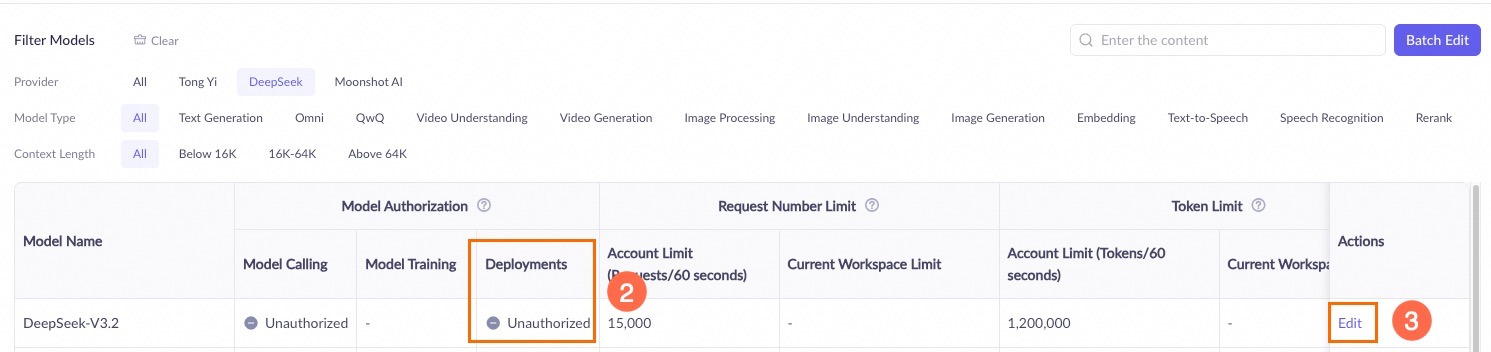
API deployment
When deploying a model by using an API, ensure the following:
-
The API Key's Workspace must have permission to manage the model. Go to the Business Space Management page in Model Studio and check the model deployment permission settings for the corresponding workspace.
API call error:
In the Actions column for the corresponding workspace, click Model Permission and Flow Control Settings. In the Model List, find the target model and check the authorization status in the Model Deployment column. If it shows Not Authorized, click Edit in the Actions column to grant permission. If you are prompted about insufficient permissions, contact your organization or IT administrator to add the relevant permissions or perform the operation on your behalf.Workspace xxx does not have deployment privilege for model xxxx. -
The Owner Account that owns the API Key has the required permissions in the Workspace. Go to the Model Studio console, click the workspace in the lower-left corner, switch to the correct workspace, and then click
 to check the model deployment permission settings.
API call error:
In the left-side navigation pane, click Permission Management and confirm that the user list includes the API Key's owner account (with type primary account). If you are prompted about insufficient permissions, contact your organization or IT administrator to add the relevant permissions or perform the operation on your behalf.Workspace access denied.