

Log backflow converts SLS (Simple Log Service) inference logs into structured datasets that can be used for model fine-tuning or evaluation.
Feature overview
The log backflow feature backflows inference log data from SLS (Simple Log Service) to the Bailian platform, formats it, and generates structured datasets (in JSONL format) that can be used for model fine-tuning or model evaluation. The backflow produces structured data, rather than a direct copy of the raw logs.
Scope
Log backflow supports creating the following two types of datasets:
- Training set: The training scenario is text generation, and the training methods support SFT (Supervised Fine-Tuning).
- Evaluation set: Supports the text generation scenario.
Enable and authorize related services
Before using log backflow, confirm that the current region is China (Beijing) or Singapore (the log backflow entry is not displayed in other regions), and complete the following service activation and permission authorization on the Model monitoring page. After all steps are completed, the authorization configuration drawer automatically closes and you enter the log backflow form.
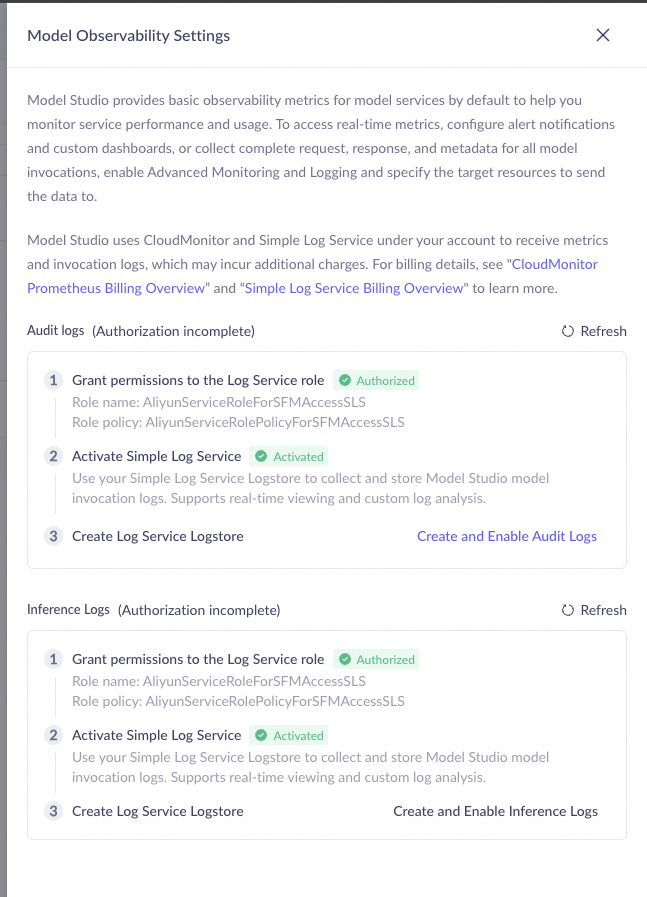
Enable audit logs and inference logs
Audit logs and inference logs each require three steps to be completed. You can use log backflow only after all six conditions are met. Audit logs are a prerequisite for inference logs, so you must complete all audit log steps first.
Audit logs
- Authorize the SLS service-linked role: Click Authorize Now to authorize the AliyunServiceRoleForSFMAccessSLS role. When not authorized, a red Not Authorized label is displayed.
- Activate SLS Log Service: When not activated, a Not Activated status and a redirect link are displayed. Click the link to go to the SLS console and complete activation.
- Enable audit logs: Click Create and Enable Audit Logs, and the system creates a LogStore instance and polls until it is ready (up to 60 seconds).
- Authorize the SLS service-linked role for inference logs.
- Confirm that SLS Log Service is activated.
- Enable inference logs: When audit logs are not enabled, this button is grayed out. You must enable audit logs first.
Role name | Purpose | Authorization timing |
|---|---|---|
AliyunServiceRoleForSFMAccessSLS | Bailian accesses SLS log data | Authorized once for audit logs and once for inference logs |
Create a log backflow dataset
Log backflow provides three entry points, all of which lead to the configuration form to create a dataset:
- Model monitoring list page
- Model monitoring detail page
- Data management page
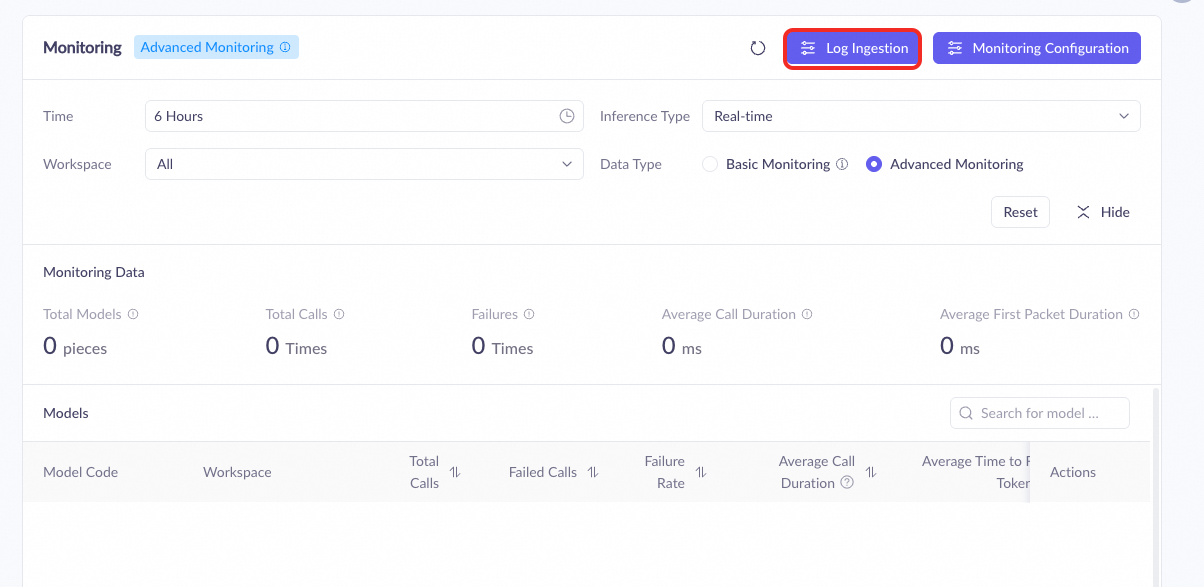
Configure backflow parameters
After entering the log backflow form, configure the following parameters from top to bottom. Some parameters have prerequisites: API Key filtering requires a time range to be selected first, and model selection requires both a time range and an API Key to be selected first. Modifying the time range, data type, training scenario, or training method will cascade-reset other parameters, so it is recommended to fill in the form strictly in order. The parameter values are described in the table below.
Estimated backflow data: The system displays the estimated number of backflow data entries based on the filter conditions. When the number exceeds 100,000, a red warning is displayed, and the excess will not be backflowed. When the query results are too many, the OK button is disabled, and you need to narrow the filter range.
Parameter | Description | Required | Value description |
|---|---|---|---|
Backflow location | Dataset storage method | Yes | Platform storage (default). Cannot be changed after creation |
Dataset name | Display name of the dataset in the list | Yes | Chinese, English, digits, underscores, slashes, and hyphens, up to 50 characters. Recommended naming format: function_scenario_model_name_time. Cannot be modified after creation |
Dataset description | Supplementary description of the dataset purpose | No | Up to 200 characters |
Type and format | Dataset purpose type | Yes | Training set or evaluation set. When evaluation set is selected, training scenario and training method are hidden. Cannot be changed after creation |
Training scenario | Training scenario type (displayed only for training sets) | Yes | Currently only text generation is supported |
Training method | Fine-tuning method (displayed only for training sets) | Yes | SFT; options are dynamically displayed by the system. Locked after creation |
Time range | Time period of the backflow logs | Yes | Last 30 days (including today), precise to hours, minutes, and seconds. Modifying resets the API Key and model selection |
API Key filter | Filter log data by API Key | Yes | All (no filter), Other (excludes listed Keys), or select specific Keys (multi-select) |
Model selection | Target models for backflow | Yes | Up to 10. Models that do not match the capability type filter are grayed out |
View backflow results
After submitting a log backflow task, view the dataset and import progress on the Data management list page.
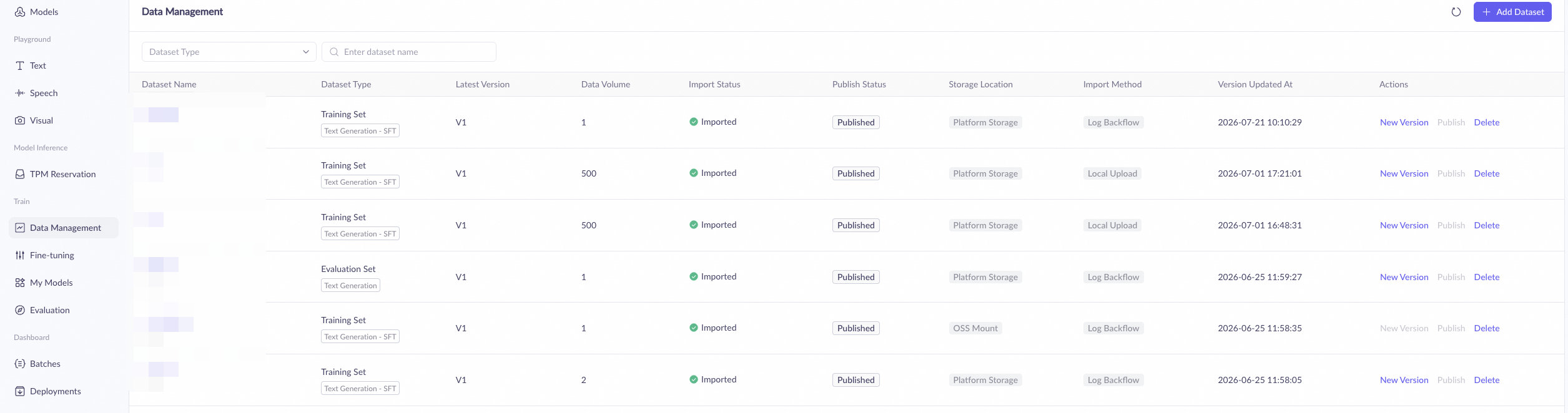
List page display
Datasets created by log backflow display the import method as Log Ingestion on the list page, and the storage location is displayed as Platform Storage based on the selection at creation.
You can view the import status of the task on the list page. When a task fails, you can view the specific failure reason returned by the system.
Under platform storage mode, the system automatically publishes the dataset version after import is complete, requiring no manual operation.
Detail page information
The information displayed on the dataset detail page varies depending on the storage method:
- Platform storage (OSS import): Displays release status, data volume, creation time, FileID, data type, import status, and OSS import address.
- Other cases: Display release status, data volume, creation time, FileID, data type, and import status.
Append log backflow data
On the Data management page, you can append a new batch of log backflow data to an existing dataset in the following two ways:
- Import data page
- Add version dialog
Incremental backflow best practices
It is recommended to backflow in batches, targeting different time periods or different models separately, and gradually accumulating high-quality training sets. Each batch can precisely select models with good performance and data from business peak hours, ensuring data quality superior to a single large backflow.
FAQ
What requests does "Other" in API Key filter include?
What requests does "Other" in API Key filter include?
Is the 100,000-entry limit a total dataset limit?
Is the 100,000-entry limit a total dataset limit?
Are audit logs and inference logs the same operation?
Are audit logs and inference logs the same operation?
Why is the estimated data volume inconsistent with the actual backflow results?
Why is the estimated data volume inconsistent with the actual backflow results?